
Are you selling products to different types of customers? Maybe some of your users are other businesses rather than private individuals. Or perhaps you have a subscription-based business with various pricing tiers for different users. In such cases, you’ll need to set up product prices by user role in WooCommerce so that each type of user sees the correct cost for their account. This article shows you, step by step, how to do this quickly and efficiently.
Here we’re going to talk about the Role and Customer Based Pricing for WooCommerce plugin, which has everything you need to add prices for user roles manually or bulk import them. The built-in features you need most for importing prices based on user role or for personal accounts:
- New custom user role creation;
- Adding pricing for a user role (or customer) on the product level;
- Import/export via the regular WooCommerce importer;
- Integration with the WP All Import plugin.
What Does “Product Prices by User Role” Mean?
When you set up product prices by user role in WooCommerce, you’re charging different prices for the same product depending on the user’s role. For example, you sell t-shirts and want to set up a “student discount” so students pay less than the general public. Or perhaps you run a SaaS business with various pricing plans — one for “Personal use” and another for “Business”. In both examples, you need to set up product prices by user role in WooCommerce. This is essential when you sell products at different prices to different types of users. Prices by user role are especially beneficial in B2B businesses, where each account type has its own pricing. They can also help in B2C businesses with subscription-based pricing, where each user type sees the price corresponding to their account.
Create WooCommerce User Roles
First, log in to your WooCommerce dashboard and click Users in the left-side menu, then Roles Management. You’ll see a list of current user roles in the table on the right. To add a custom role, choose the title and the role capabilities to inherit, then click the Add role button.
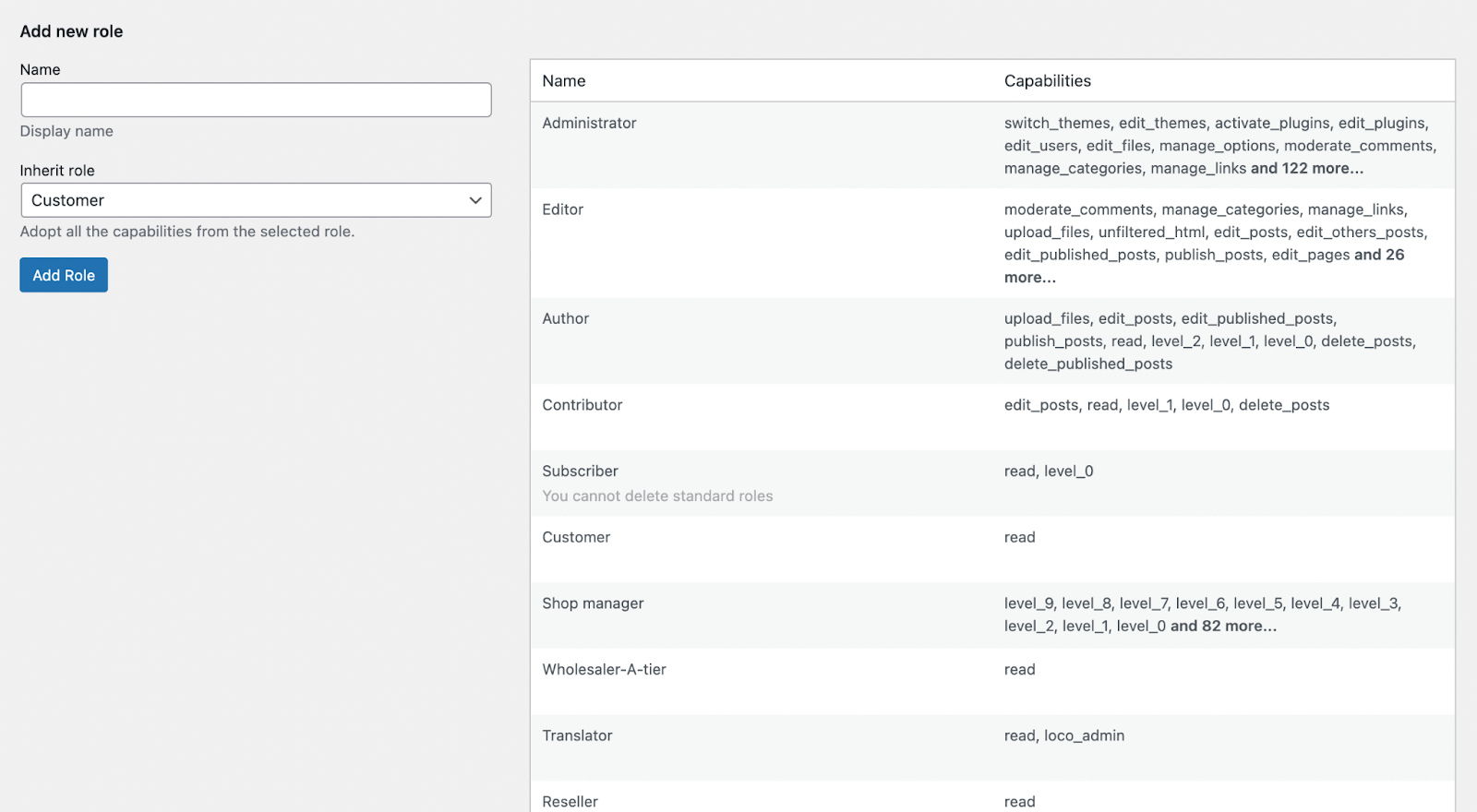
The plugin takes the capabilities from the chosen role (read, edit, moderate, etc.) to grant the appropriate permissions. To assign the new role to a particular user, go to the Users tab, choose the user, and click Assign Roles. This lets you select user roles so you can later assign different prices to different types of users. When done, hit the Save Changes button at the bottom of the screen.
Once you’ve created all the user roles you need, you can create product price conditions based on those roles.
How to Use the Regular WooCommerce Importer to Mass Import Prices Based on User Role
You’ll find the WooCommerce importing tool in the WooCommerce > Import/Export section. We recommend creating one role-based pricing rule manually for a few products first, then using the export to get a CSV with all the columns ready for importing.
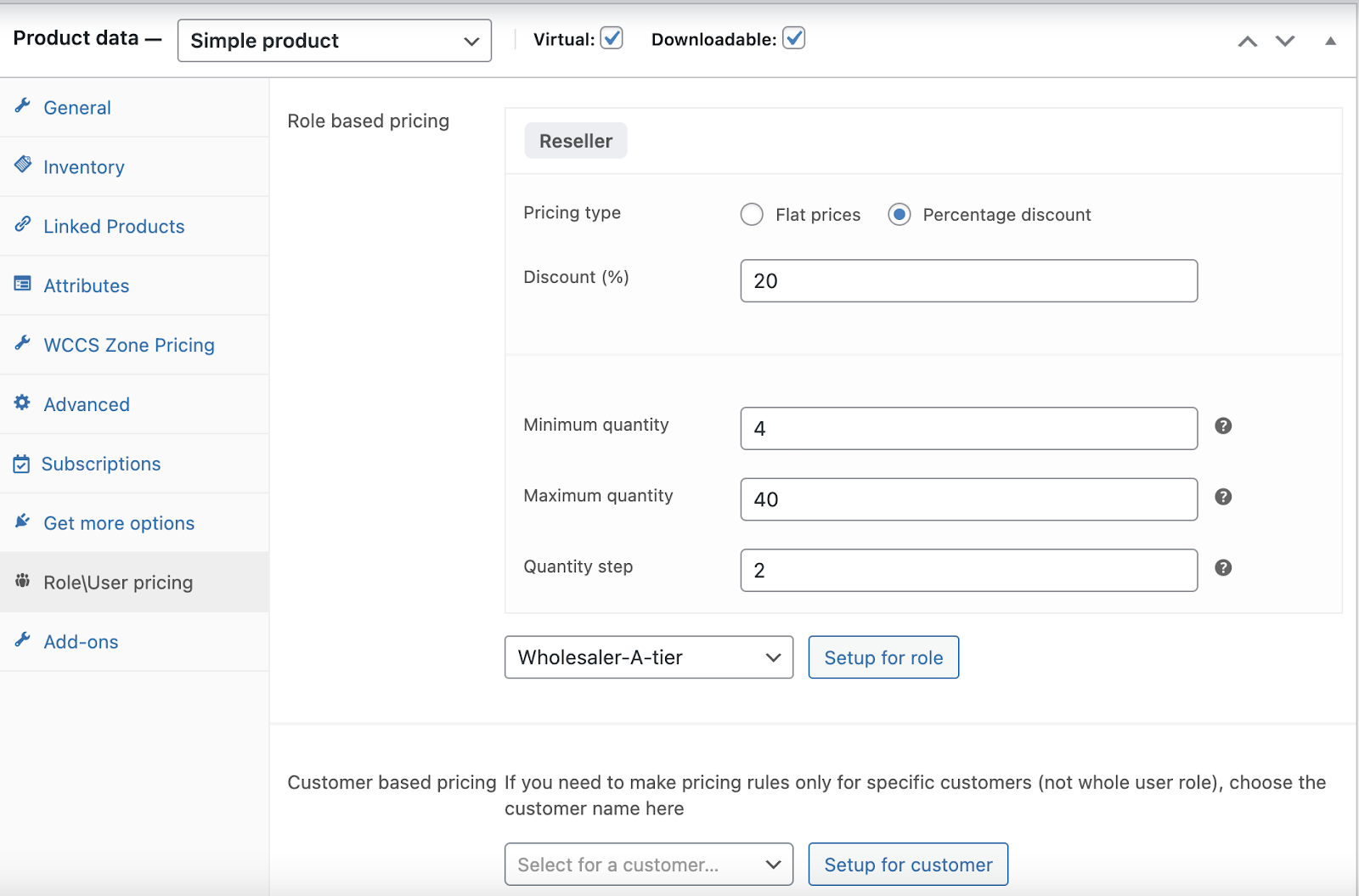
When you have a few samples ready, go to WooCommerce > All Products > Export and click the Export button. Then choose all the role-based pricing fields — or the customer-based fields, if your pricing is based on customers rather than roles.
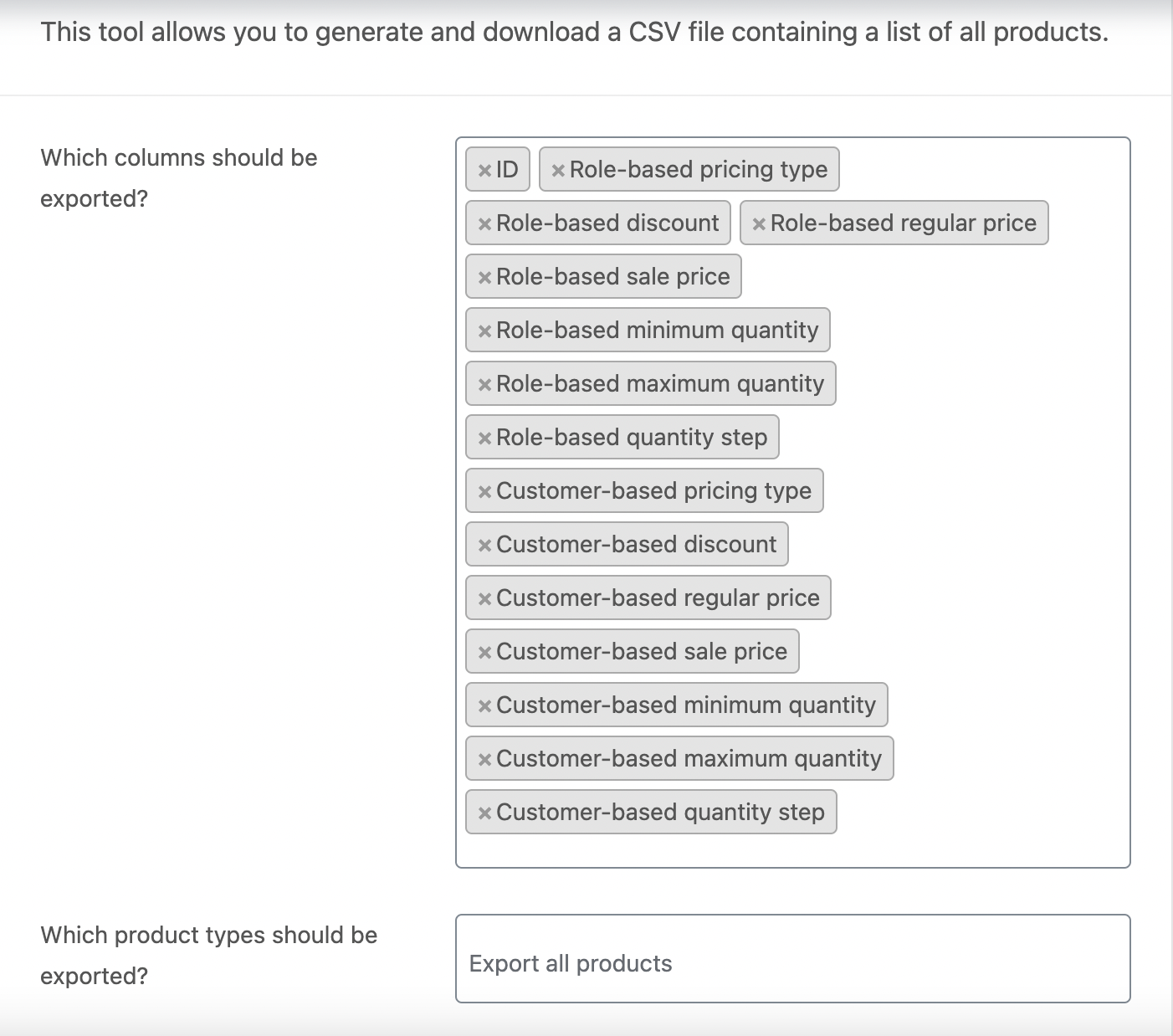
As a result, you’ll get a CSV with all your products plus additional columns for the role- or account-based price fields — from the pricing type (flat or percentage discounts) to the minimum/maximum purchase quantity and quantity step.
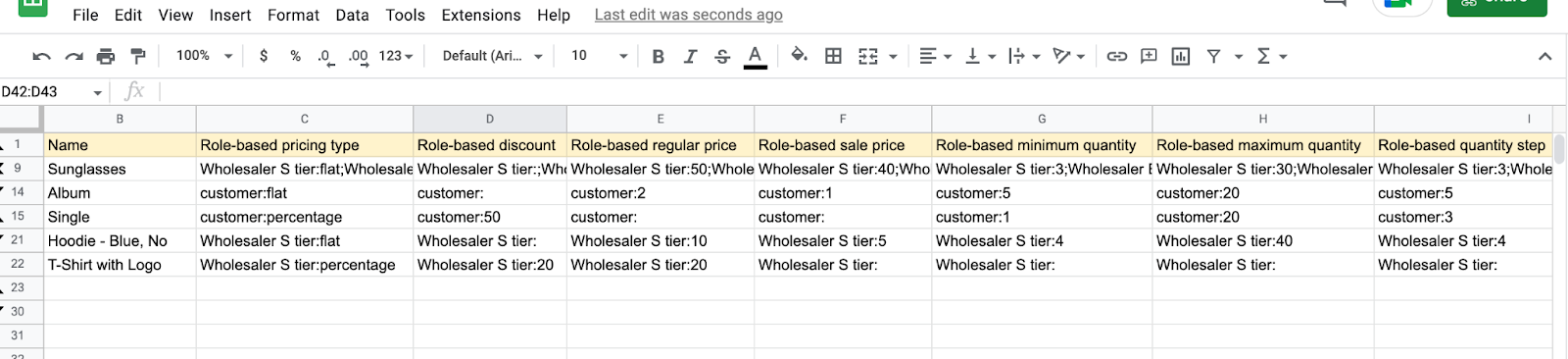
From this point, you can fill in the remaining role-based pricing conditions for your other products. The fields you’ll find in the export file:
Role-based pricing type – either a flat price or a percentage discount. Values: flat or percentage.
Role-based discount – if the pricing type is set to ‘percentage’, indicate the discount value here. Values: any number between -100 and 100.
Role-based regular price – if the pricing type is set to ‘flat’, this is the standard price for the given role.
Role-based sale price – if the pricing type is set to ‘flat’, this is the sale price for the given role.
Role-based minimum quantity – the minimum quantity of products that can be ordered for the given role.
Role-based maximum quantity – the maximum quantity of products that can be ordered for the given role.
Role-based quantity step – the increment in which products can be added to the cart for the given role.
The next fields mean the same, but apply to individual user accounts instead of roles:
- Customer-based pricing type
- Customer-based discount
- Customer-based regular price
- Customer-based sale price
- Customer-based minimum quantity
- Customer-based maximum quantity
- Customer-based quantity step
You can skip these on the first export screen if you use only role-based pricing. Also note that you should use the user ID to identify the correct account — you can find it in the address bar on the Edit User page:

Or you can use other tools (like WP All Export) that can mass-export user IDs.
After you finish editing the export file, upload it using the same default WooCommerce tool. Go to WooCommerce > Products and click the Import button in the top-left corner. On the next screen you’ll find the option to select the file you created. If you edited the exported file, your columns should be mapped automatically without any extra work:
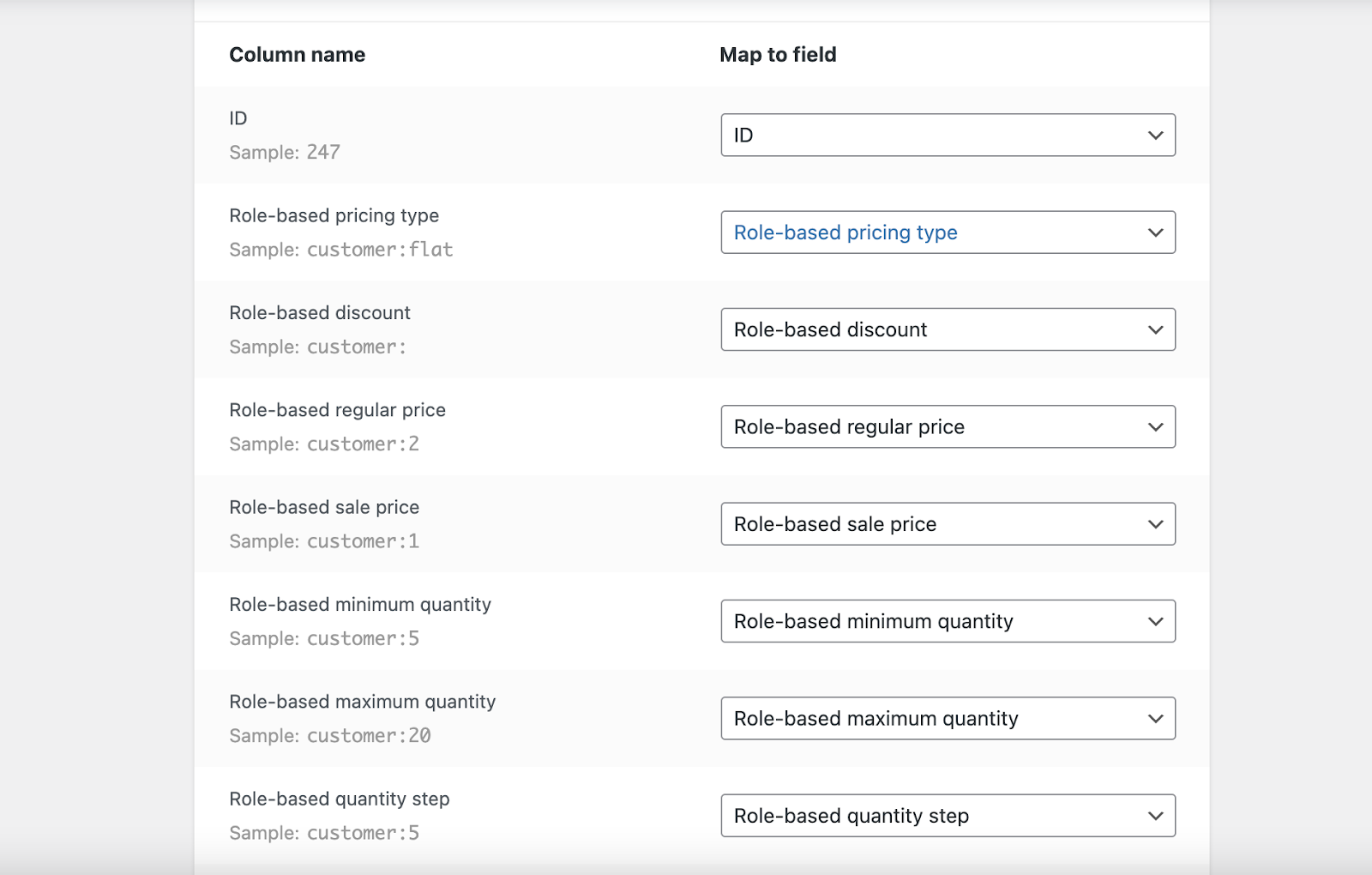
If you didn’t use the export file, or you renamed columns, you’ll need to map the columns to the corresponding fields manually.
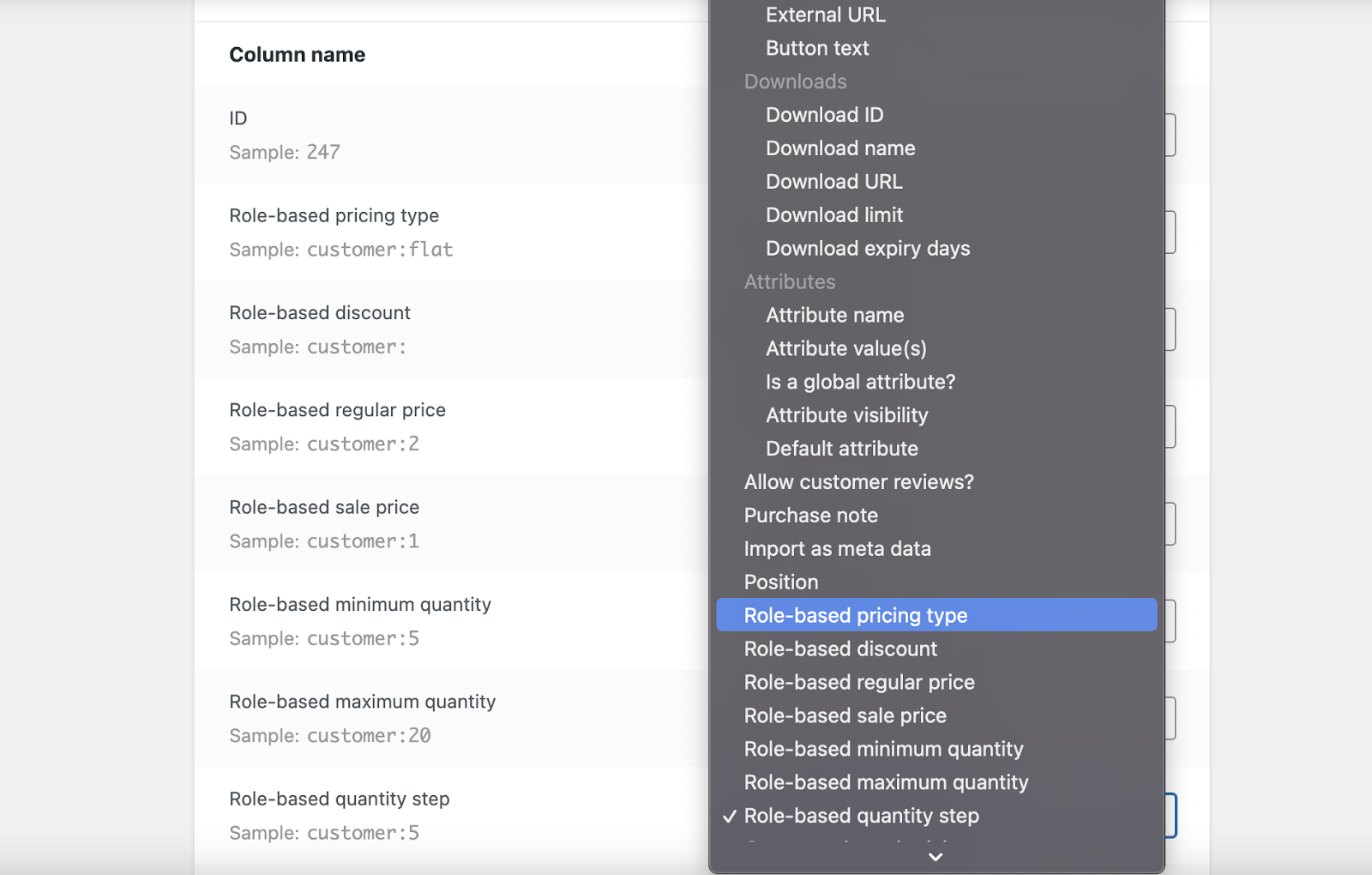
When the import is finished, don’t forget to check the imported rules in the RoleUser pricing tab of the products that were changed.
Use the WP All Import Plugin to Import Prices Based on User Role or User Account
If you sell products from various vendors, wholesalers, or manufacturers, you probably use the WP All Import plugin to manage your stock. Here’s how to simplify managing prices based on user role with WP All Import.
Go to WP All Import > New Import and choose your file:
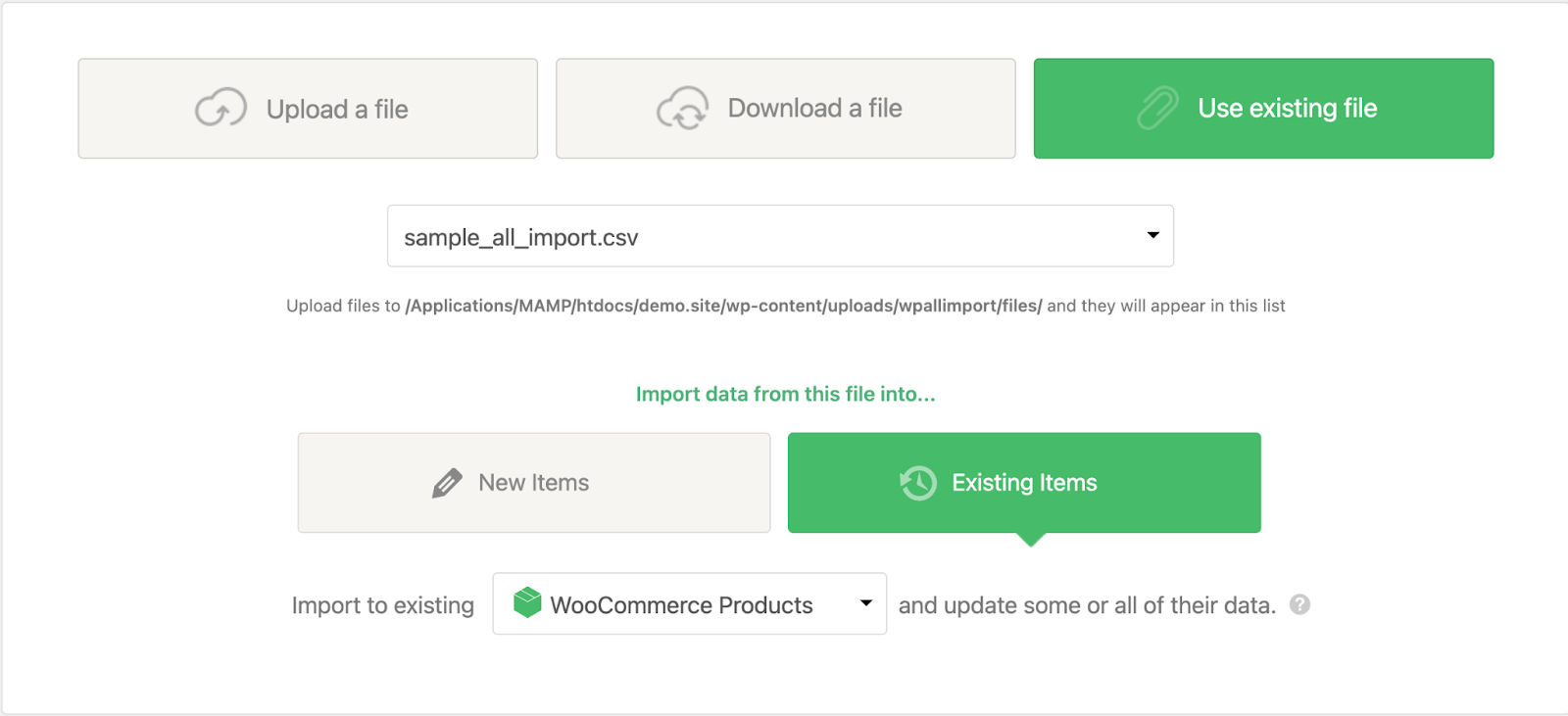
You can choose to either import new products or update existing ones.
In step 2, check whether all the needed fields were recognized by All Import as separate columns, and double-check that you have a unique identifier (post ID, SKU, title, etc.).
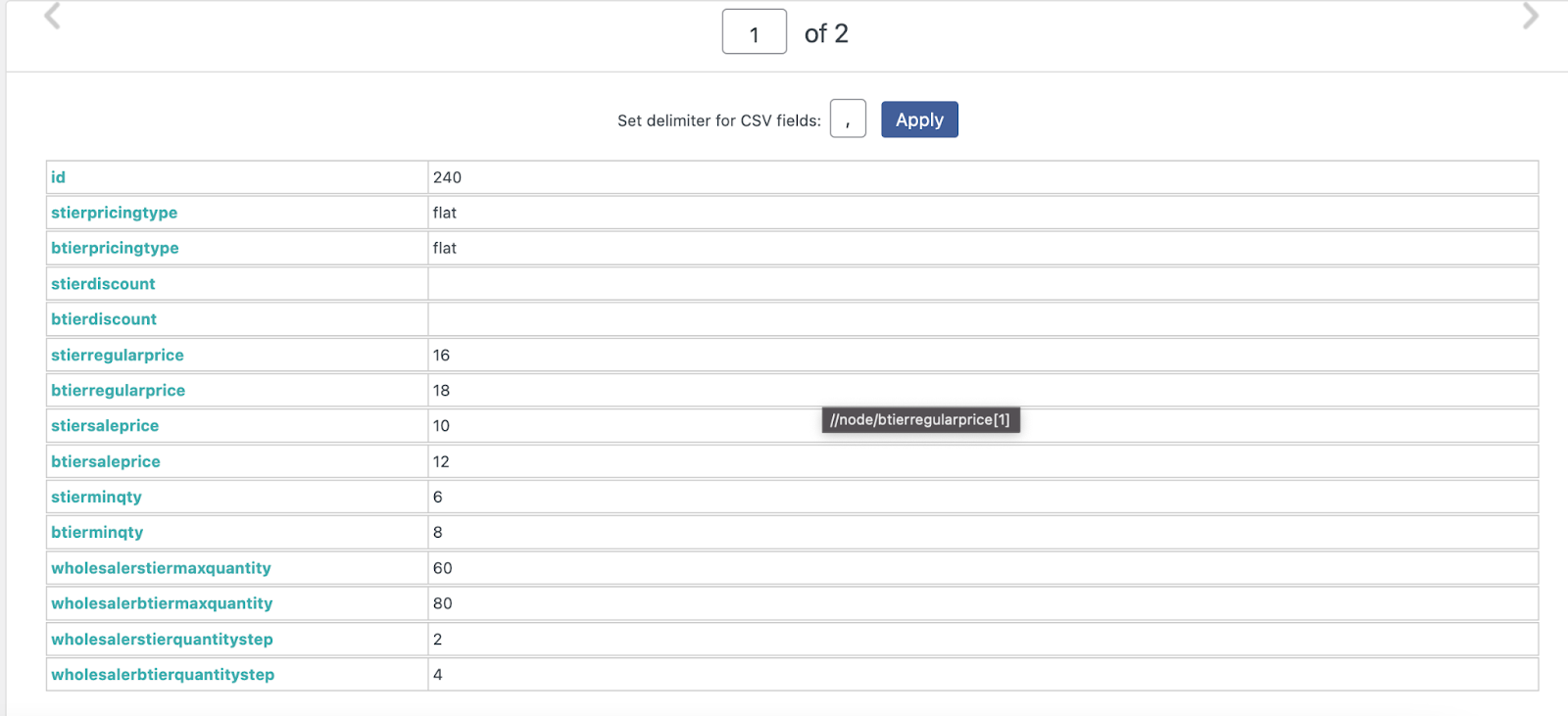
In the next step, you’ll find the Role and Customer based pricing section, where all default and newly created roles are displayed:
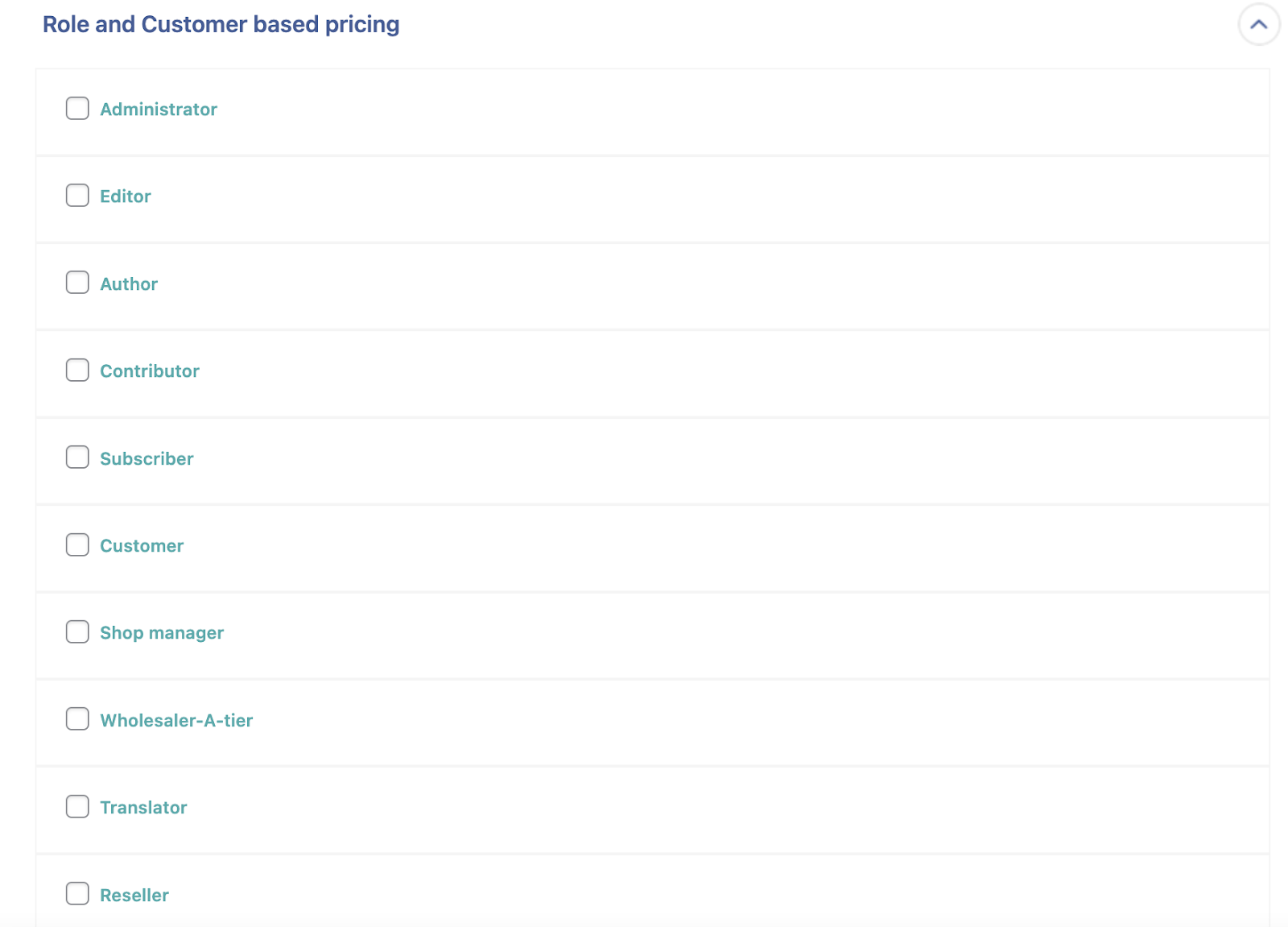
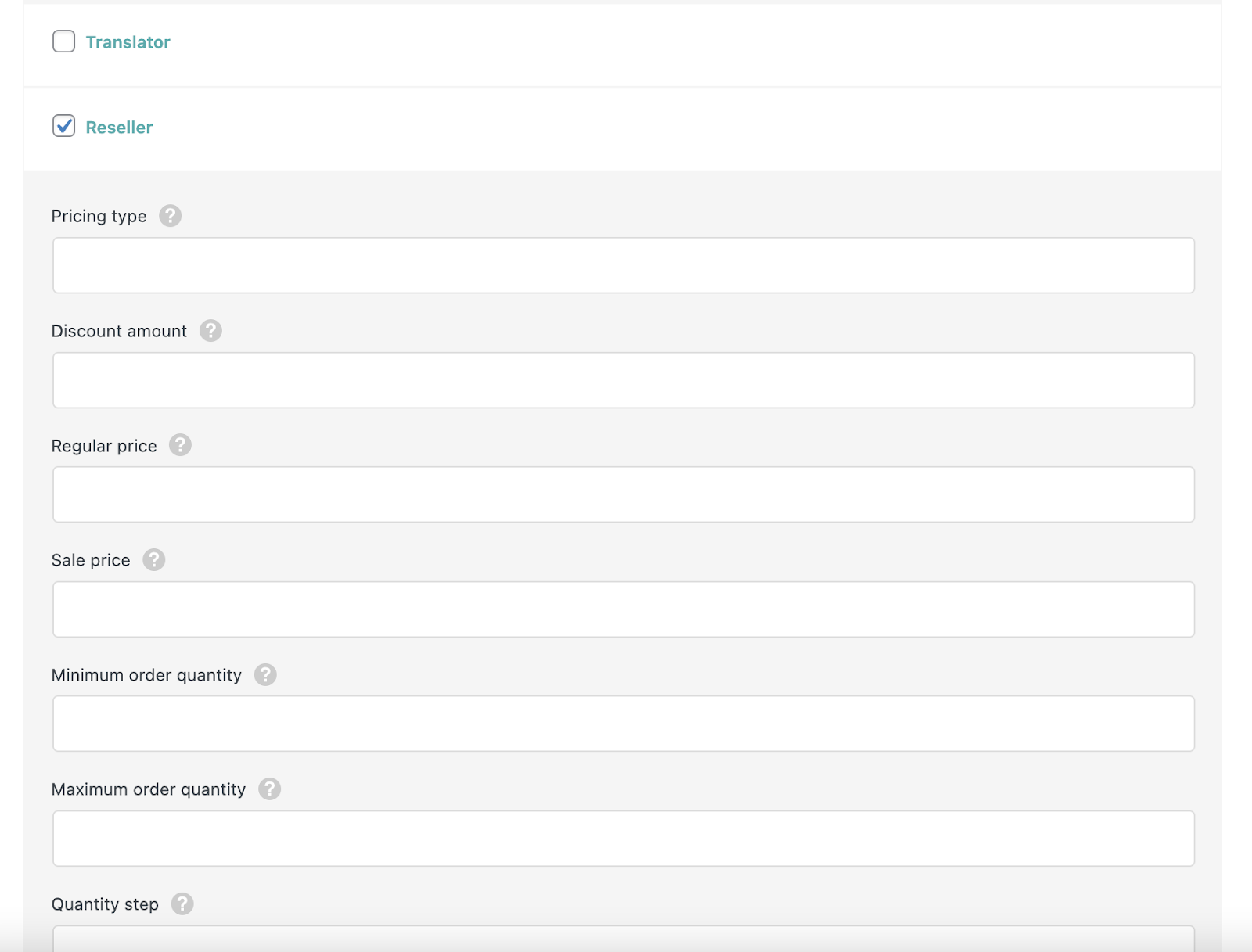
Choose the roles that should have specific pricing rules:
Then drag and drop the column names into the corresponding fields, like this:
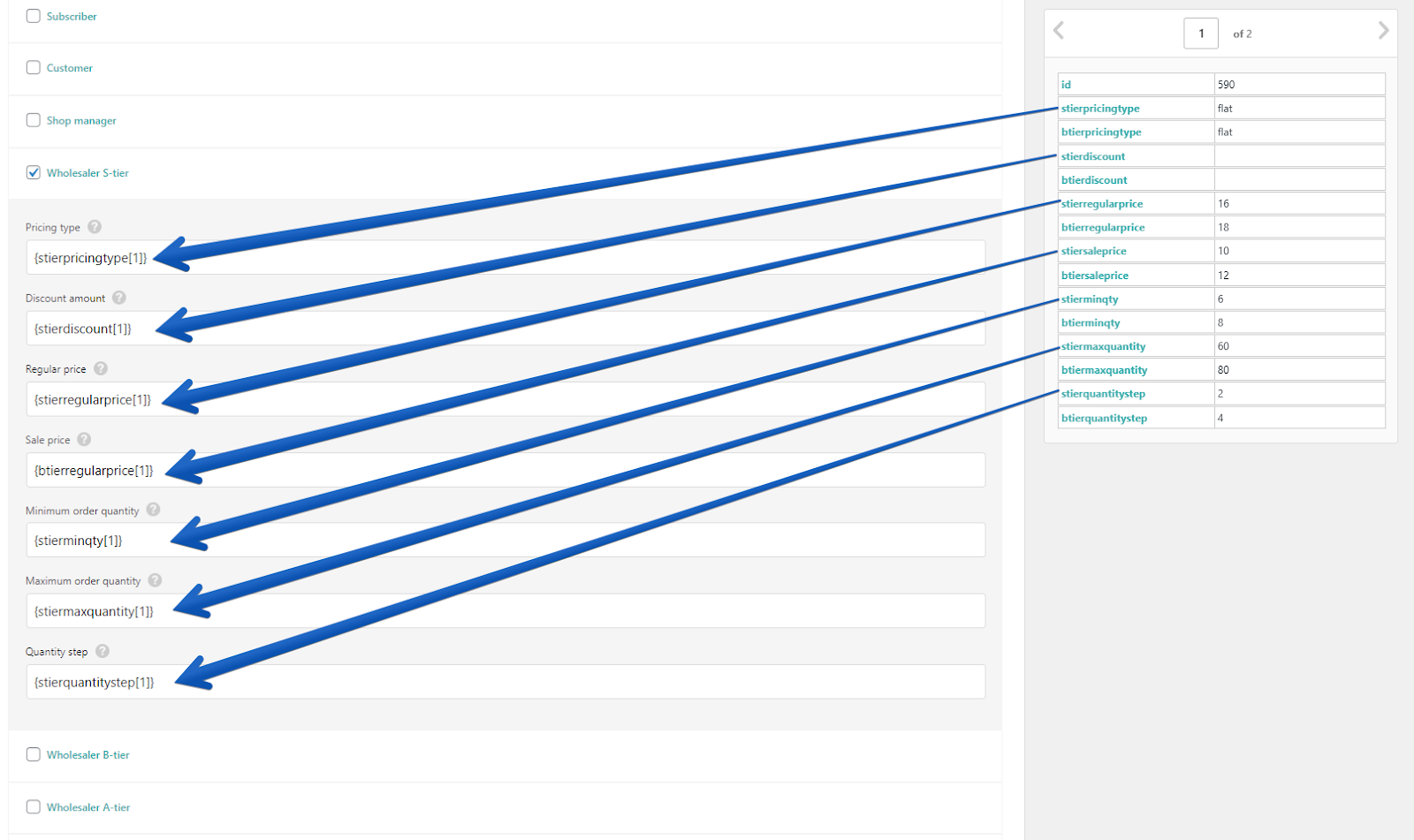
You can add role-based pricing for as many roles as you need at once. And if you use only one pricing type — flat prices or a percentage discount — you can type it directly into the ‘Pricing type’ field here:
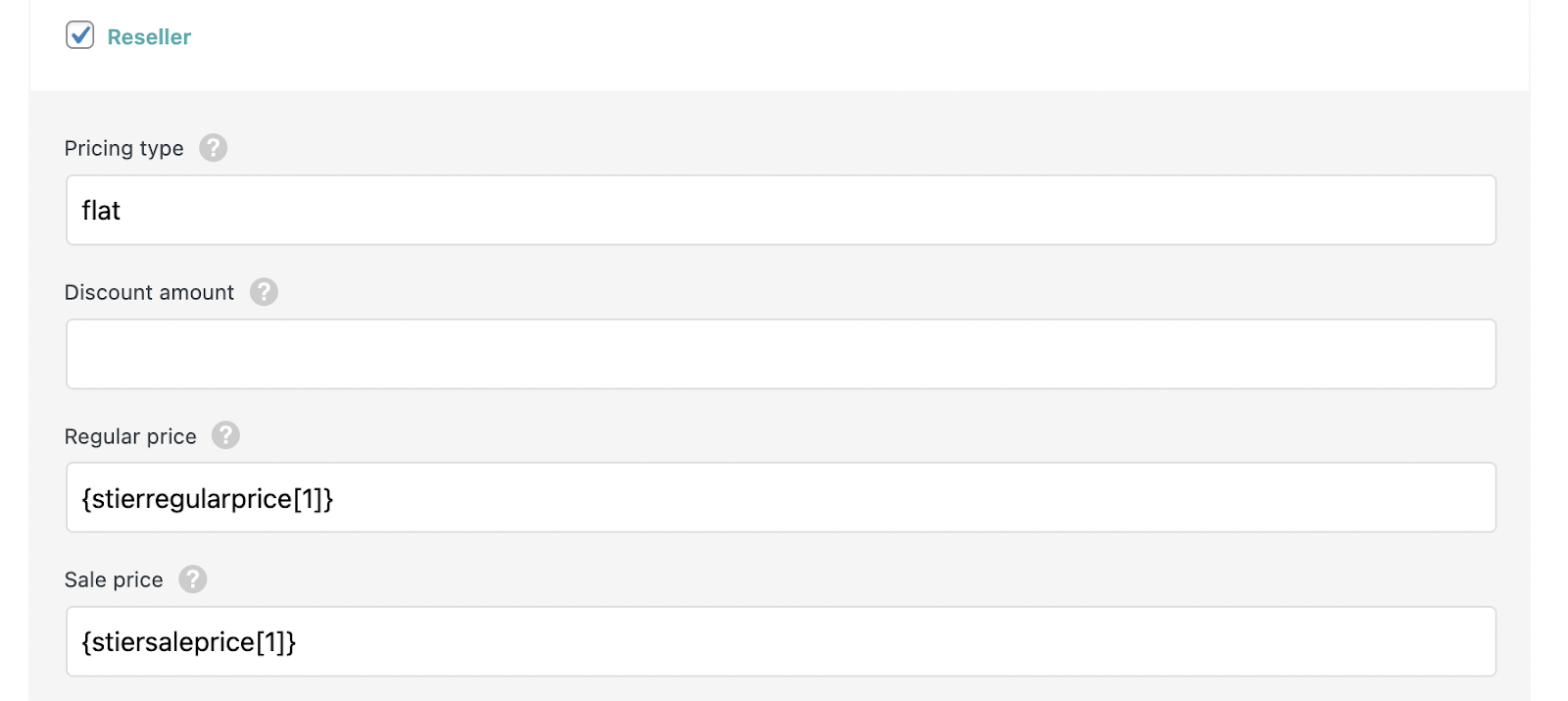
The mandatory fields are:
Role-based pricing type – either a flat price or a percentage discount. Values: flat or percentage.
If you choose ‘flat’, you need to fill in these two: Role-based regular price and Role-based sale price.
If you choose ‘percentage’, you only need to indicate the discount value (in % off the original product price):
Role-based discount – values: any number between -100 and 100. If you use negative values, product costs will be higher for users with the given role.
When all role-based pricing fields are mapped, the next step is to pick the unique identifier for updating existing products (if you intend to update pricing for previously created products):
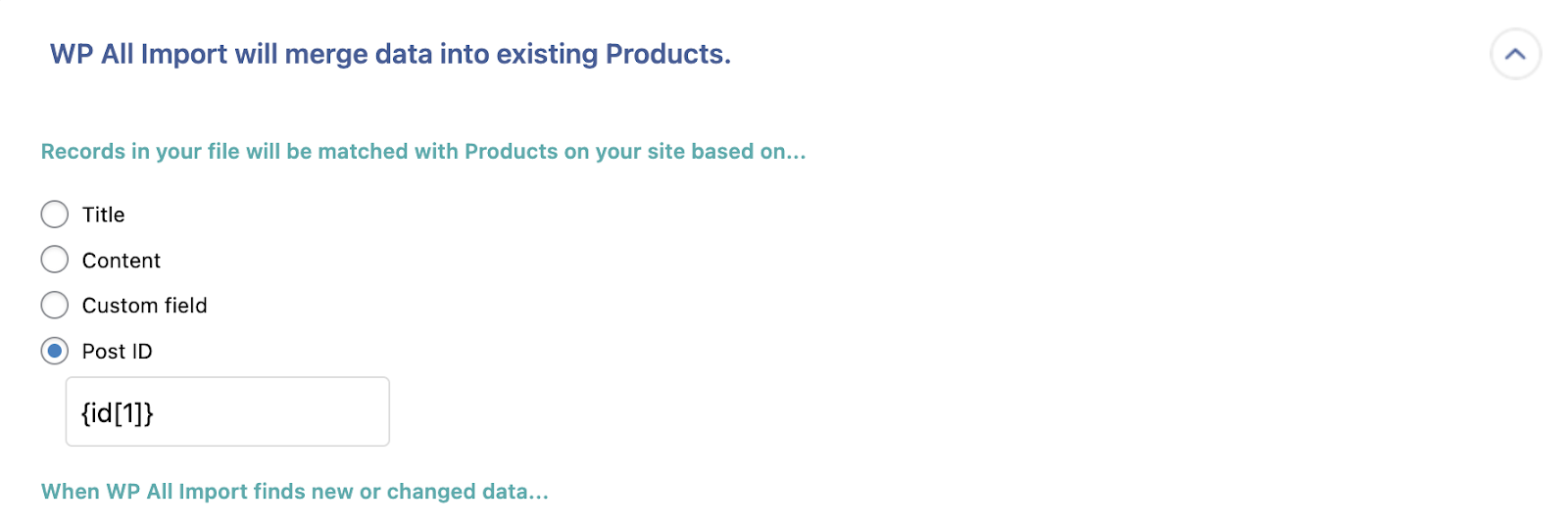
And then, if you want to import only prices for user roles, select the option called ‘Choose which data to update’ and pick only the ‘Role/Customer Based Pricing’ fields here:
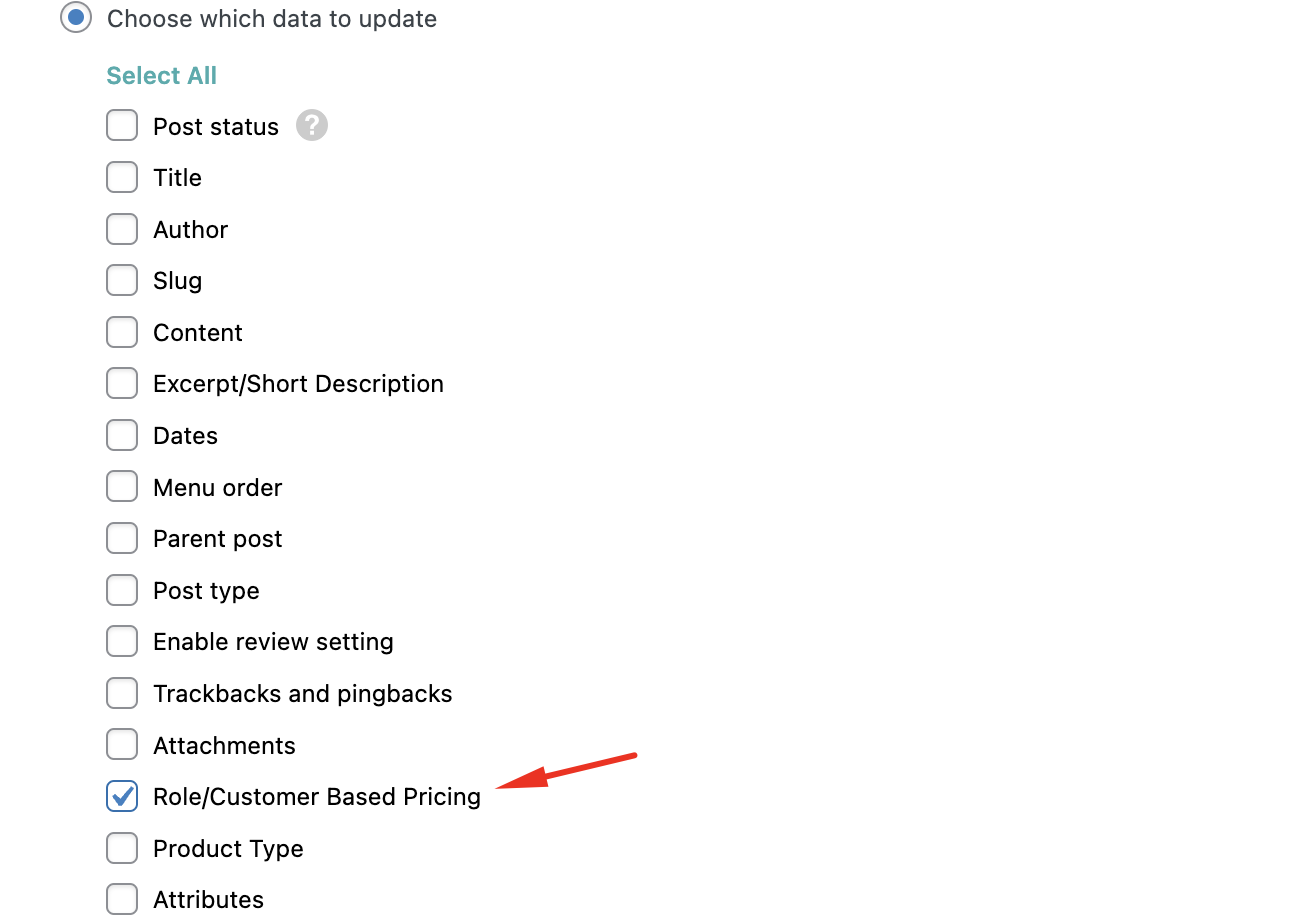
That’s it. Once your import has run, you can check the import logs to see what was imported successfully:
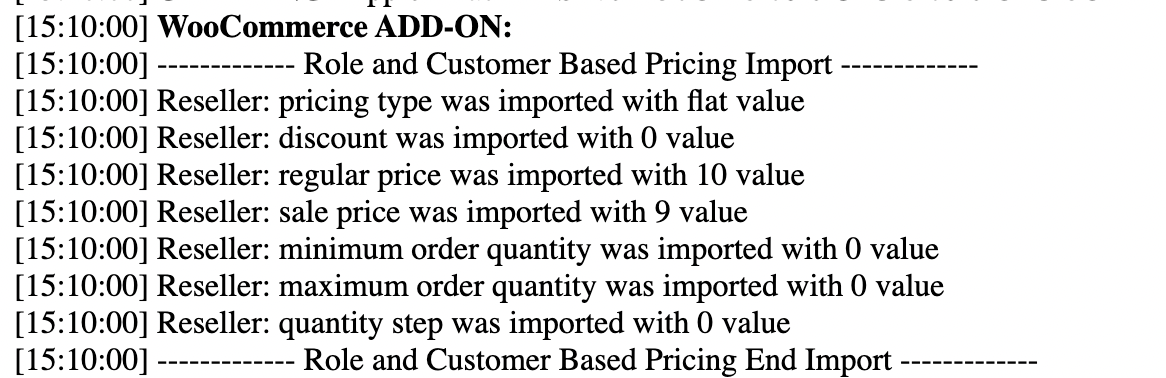
Also, don’t forget to double-check a few products to make sure the role-based pricing rules were set up as planned.
Conclusion
By now, you should know how to set up product prices by user role in WooCommerce using either the regular WordPress importer or WP All Import. This lets you charge different prices to different types of users. For example, you can run a SaaS business where each user type has its own pricing plan, or a B2B business where each account type has its own pricing and wholesalers get their special rates. With this guide, your customers will always see the correct prices for their accounts.
In the end, the Role and Customer Based Pricing for WooCommerce plugin handles the entire process for you: it imports your prices and displays them in your WooCommerce store.