
Installation
Free version
- Download the plugin from wp.org – https://wordpress.org/plugins/conditional-logic-for-woo-product-add-ons.
- Go to WordPress Admin > Plugins > Add New, click Upload Plugin, and choose the file you downloaded in step 1.
- Click Install Now and then Activate Plugin.
- Double-check that you have the WooCommerce Product Add-ons plugin activated — it’s required for Conditional Logic to work.
Premium version
- Download the premium plugin from the email you received after purchase, or visit https://users.freemius.com/login and enter your credentials to access the buyer dashboard, where you can find the premium version of the plugin and your license key.
- Before installing the premium version, please deactivate the free version if it is still running.
- Go to WordPress Admin > Plugins > Add New, click Upload Plugin, and choose the file you downloaded in step 1.
- Click Install Now and then Activate Plugin.
- Double-check that you have the WooCommerce Product Add-ons plugin activated — it’s required for Conditional Logic to work.
If you see an error saying:
Fatal error: Cannot declare class ComposerAutoloaderInit00e8679be6824c83a88ea5e130babba2, because the name is already in useplease double-check whether the free version is still activated. Deactivate it, then try activating the premium plugin once more.
Configuration
The very first thing to do is make sure you have Product Add-ons by WooCommerce installed and configured.
Create add-on fields at the product level or as global add-ons.
Once all your fields are ready (or if you set them up before installing the plugin), you can start setting conditions for them.
Update Add-on Fields
To identify the right fields and their options, Conditional Logic assigns slugs to each field. That’s why you have to update your add-on fields first.
If you don’t update a field, you’ll see a notice when trying to set up conditions:
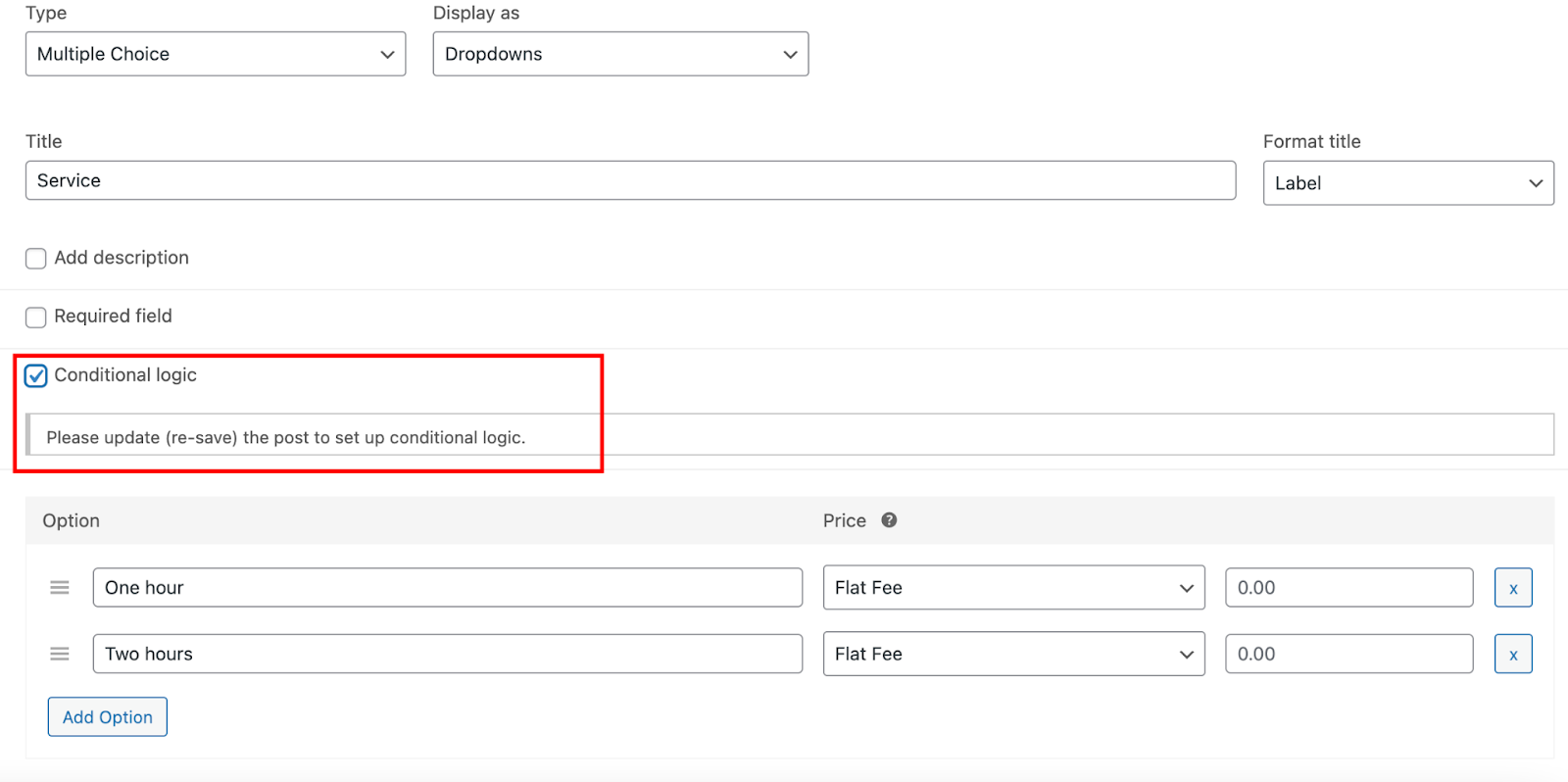
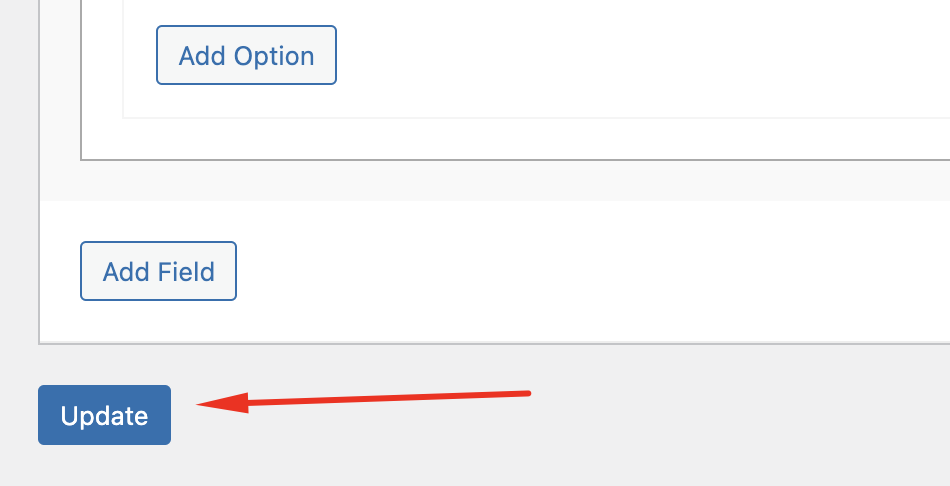
When you see that warning, all you have to do is click the Update button once more to re-save the add-on or product:
Setting Up Conditional Logic Step by Step
When the product/add-on has been updated, you can set up your conditions.
Conditional logic can be used on every add-on field. All fields and their options can also be used as conditions, except for the ‘Heading’ field type, because it is plain text rather than an option.
Now select the field you want to set up conditions for.
If you see the following fields, conditional logic is enabled:
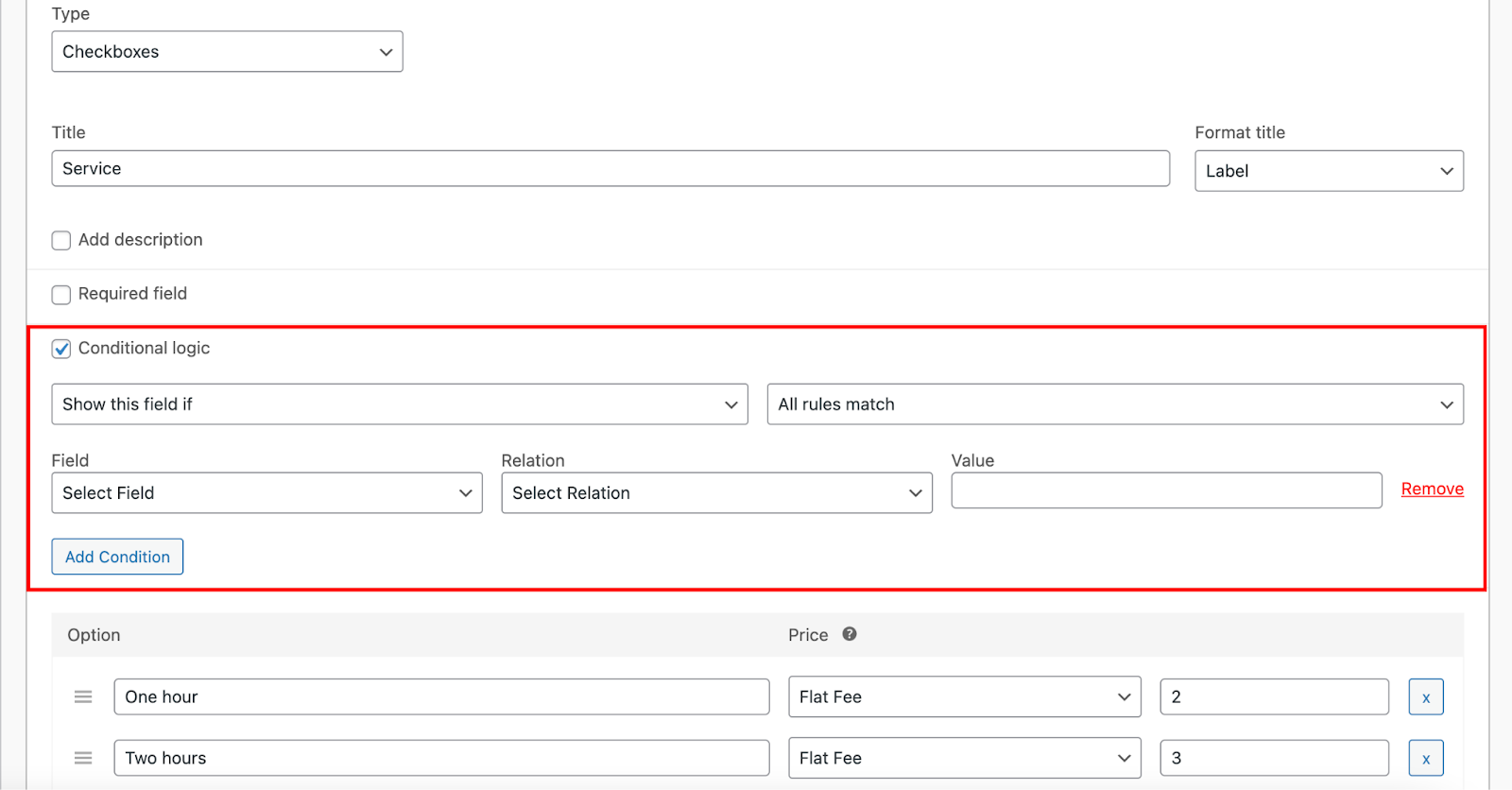
The first setting is field visibility. It has two options:
- Show this field if
- Hide this field if
This controls what happens to the chosen field.
If you want it hidden by default and displayed only when certain conditions are met – choose ‘Show this field if’.
If you want it visible by default but hidden when certain conditions are met – choose ‘Hide this field if’.
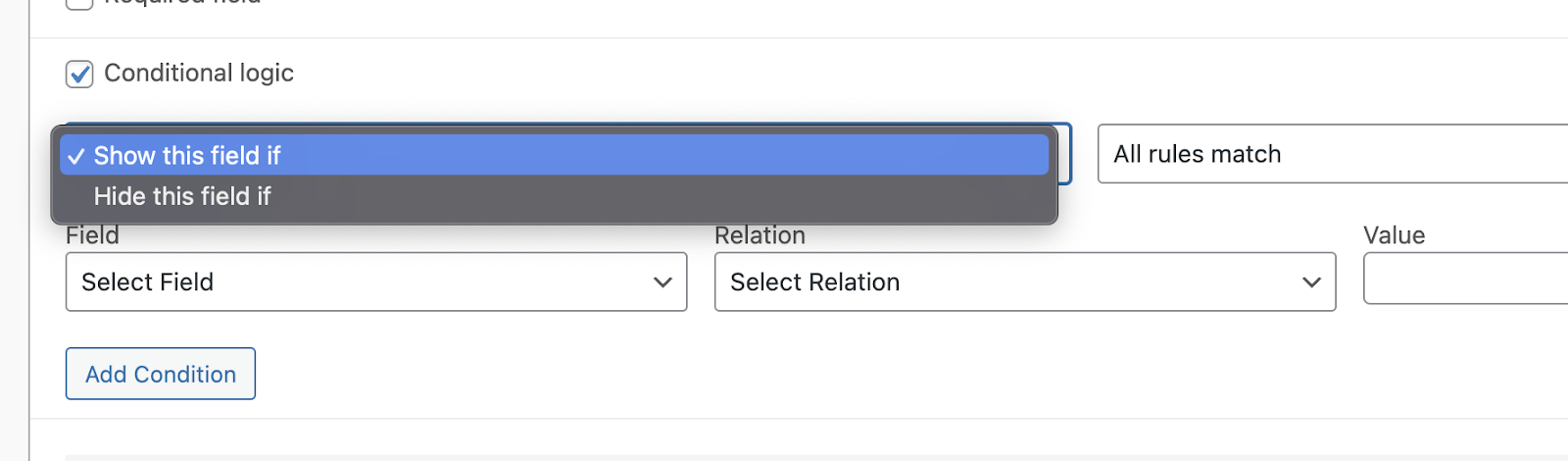
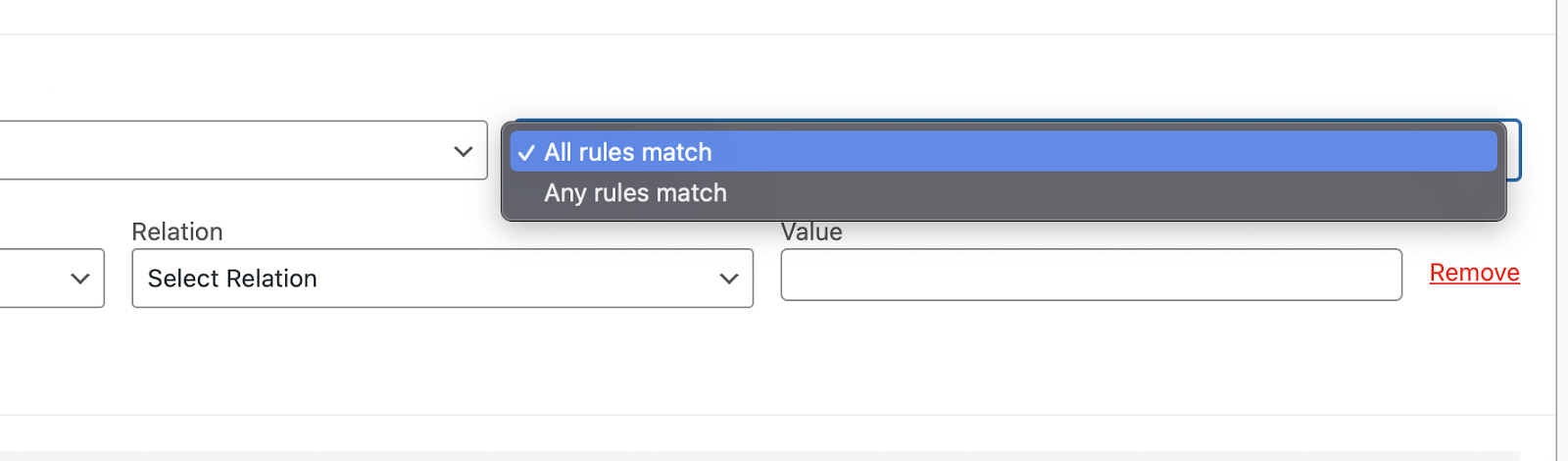
Since you can add unlimited conditions, the next setting controls when to apply them. There are two options here as well:
- Any rules match
- All rules match
Use ‘Any rules match’ if you have one or several conditions and it’s enough for any one of them to be met.
If you have two or more conditions and need all of them to match before showing/hiding the field – use ‘All rules match’.
Next, choose the field the condition will refer to when checking whether the conditions are true.
Here you can see all the fields this add-on currently has:
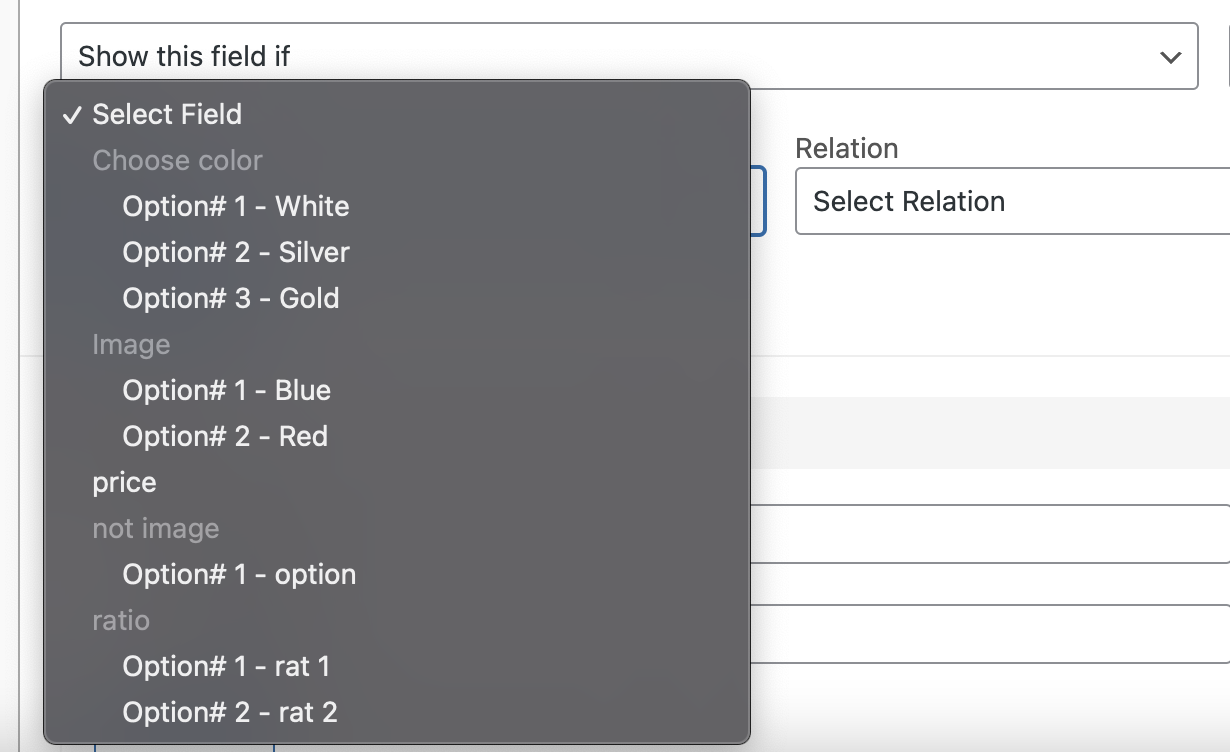
If the field type is Multiple Choice or Checkbox, all of its options are listed. In the example, the field ‘Color’ has three options: white, silver, and gold. Each of these options can be used as part of a condition. Note that each option has an option number and a label: the label is the name of your option, and the number represents the option’s position in the interface. If you change the order of options inside a field, adjust your conditions accordingly.
The only field type you won’t see here is ‘Heading’, because conditions cannot be set for it.
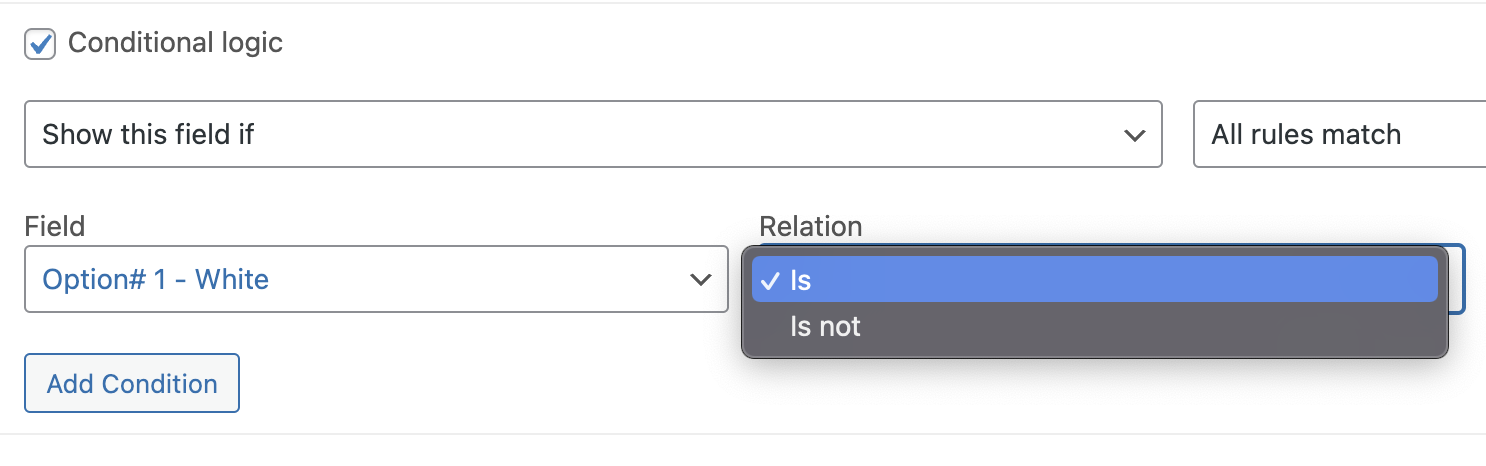
The next step is to select the relation between the field and the value that makes up the condition.
Each field type has its own relation types.
Multiple Choice and Checkboxes types can be conditioned as:
- Is checked – the customer selects the option you set in ‘field’.
- Is not checked – the customer selects or checks anything besides the option you set in ‘field’.
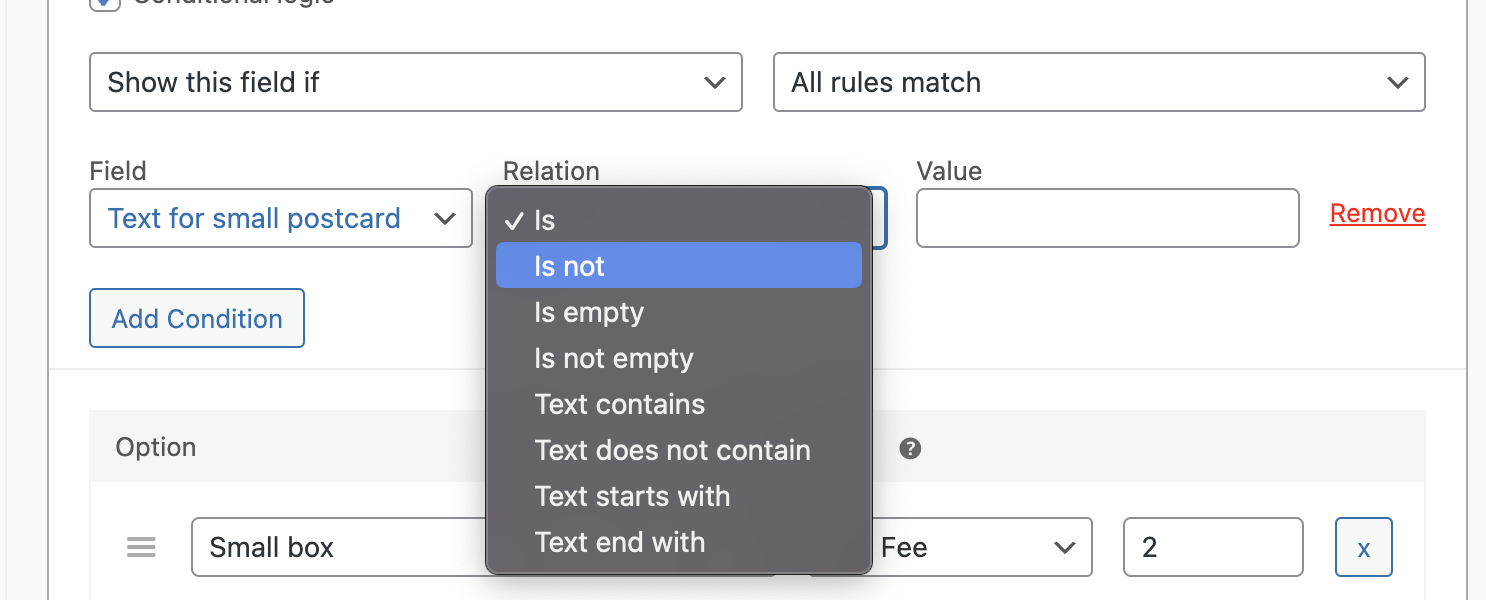
Short Text and Long Text have the following conditions:
- Is – the text entered by the customer must fully match your value (set in the next step).
- Is not – the text entered by the customer must not match your value.
- Is empty – the customer doesn’t enter any text in the selected field.
- Is not empty – the customer enters any text in the selected field.
- Text contains – the text entered by the customer must contain your value anywhere in the text.
- Text does not contain – the text entered by the customer must not contain your value anywhere in the text.
- Text starts with – the text entered by the customer starts exactly with your value.
- Text ends with – the text entered by the customer ends with your value.
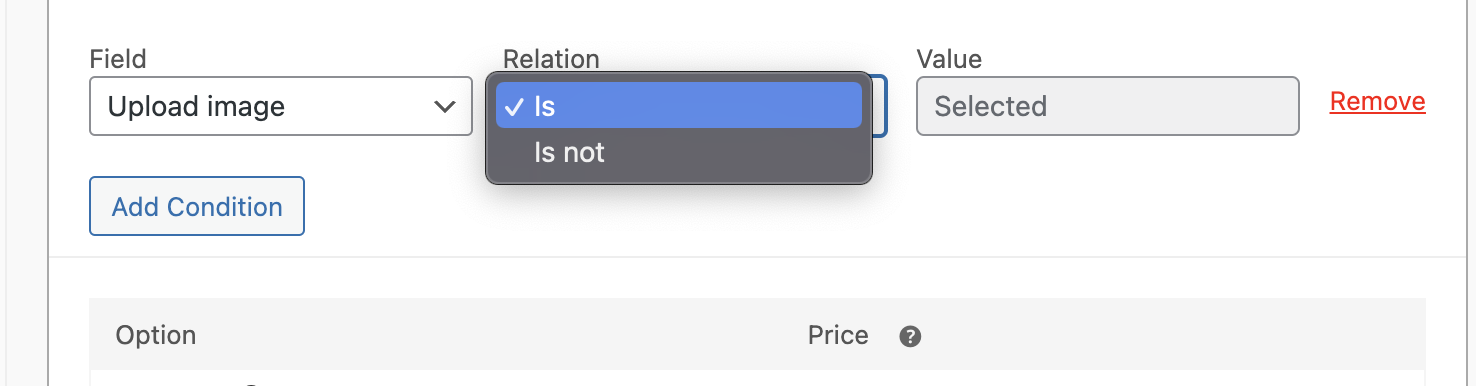
File upload may be:
- Is selected – the customer has chosen a file to upload.
- Is not selected – the customer has not chosen a file to upload yet.
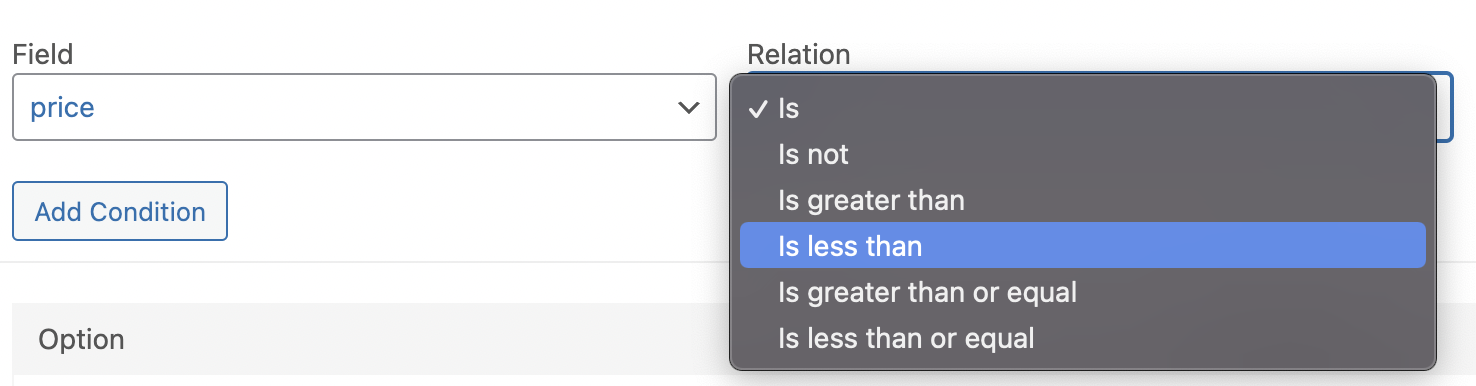
Customer Defined Price and Quantity are numeric field types, and their conditions may be:
- Is – the price or quantity entered by the customer equals the value you set in the next field.
- Is not – the price or quantity is anything besides the value you set in the next field.
- Is greater than – the price or quantity is greater than the value.
- Is less than – the price or quantity is less than the value.
- Is greater than or equal – the price or quantity is greater than or equal to the value.
- Is less than or equal – the price or quantity is less than or equal to the value.
After setting the relation to the field, it’s time to enter the value to finish the conditional logic.
Values also depend on the field type and the chosen relation.
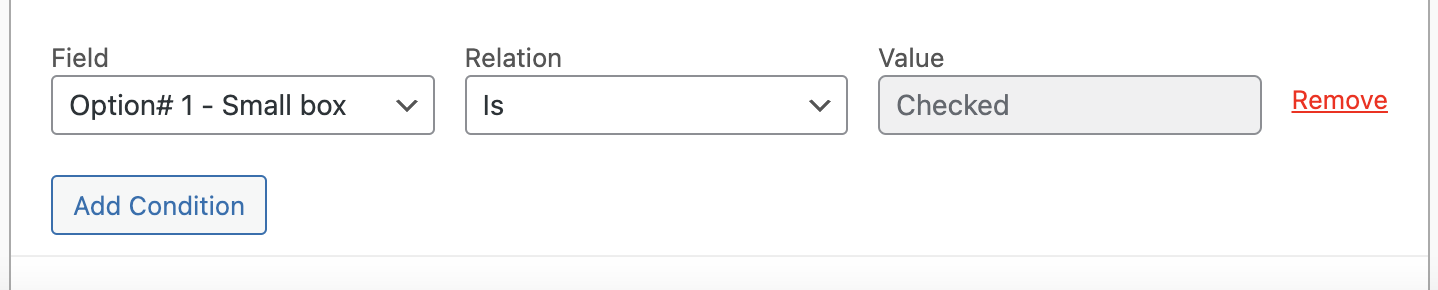
Multiple Choice and Checkboxes can only be set to the Is or Is not state, and there is only one value to be set – Checked:
- Checked – the condition is met when this field and this option are selected by the customer.
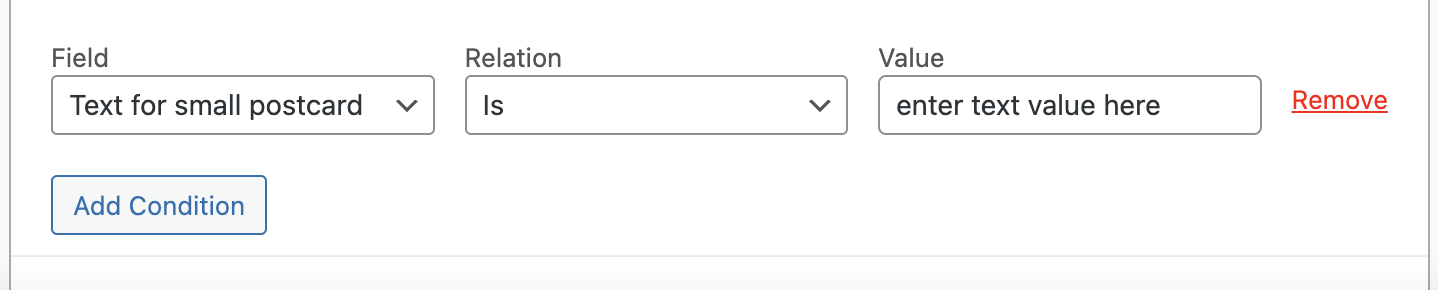
Short Text and Long Text have multiple relation types, and multiple values can be set:
- Is and Is not – the value must match the customer’s entry 100% for the condition to work.
- Is empty and Is not empty – these don’t have a value field. The relations are self-explanatory.
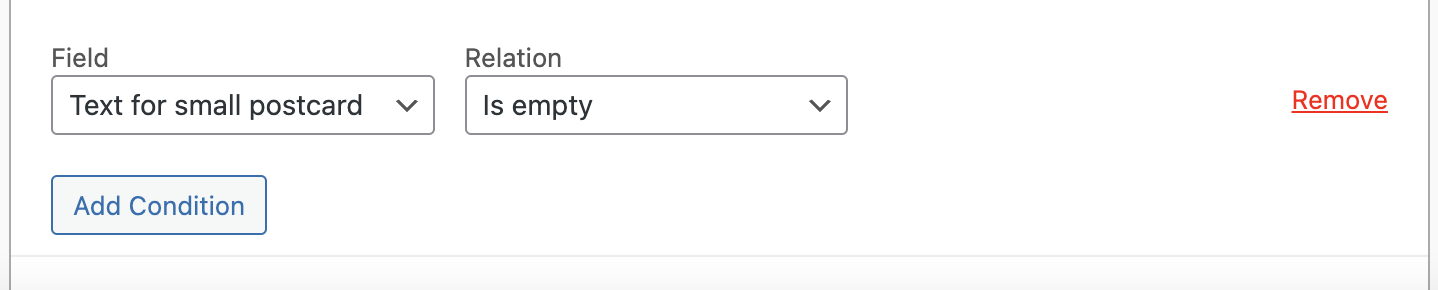
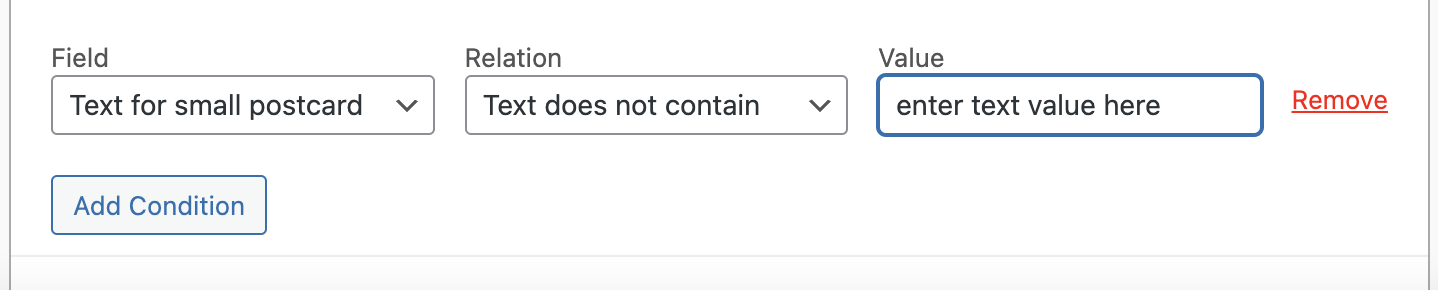
- Text contains and Text does not contain – the text you enter in the value field should appear (or not appear) anywhere in the text entered by the customer.
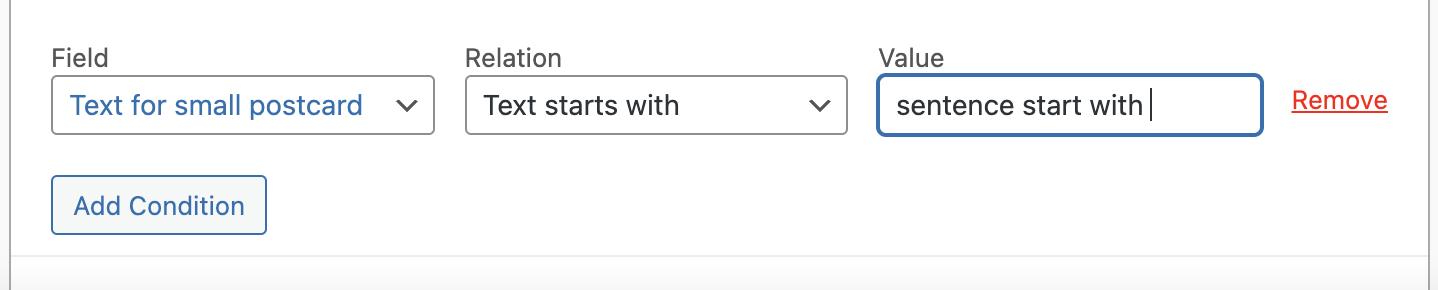
- Text starts with and Text ends with – set the value to any word or phrase that should appear at the very beginning or end of the text entered by the customer.
The File upload field type offers only Is selected and Is not selected; you cannot set the value to anything else because there is no other state:
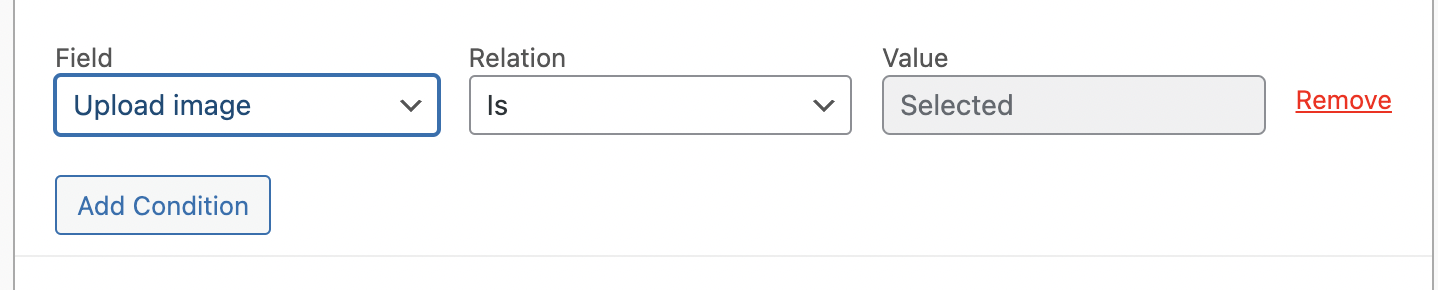
Whether the user has uploaded a file or not determines whether the condition is met.
Since Customer Defined Price and Quantity are numeric field types, their values can only contain numbers.
- Is or Is not – enter the exact number; the condition checks whether the value you set equals the price or quantity entered by the customer.
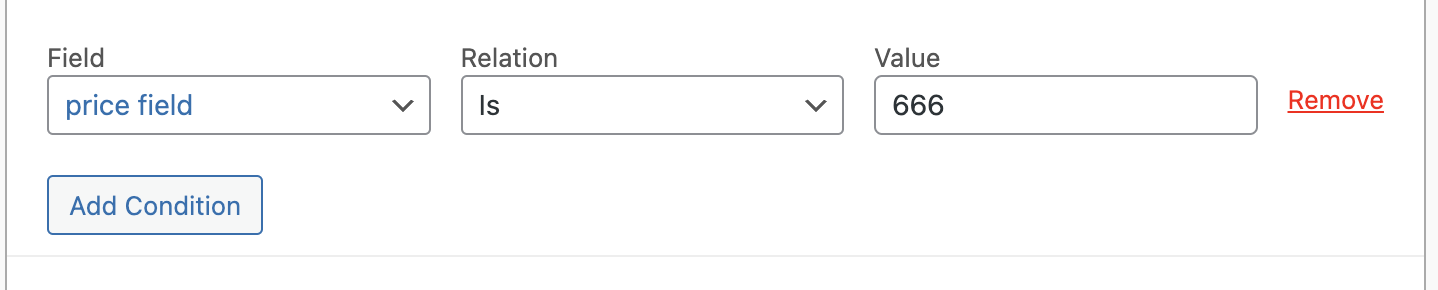
- Is greater than or Is less than – the condition is met when the customer sets a price or quantity greater or less than the value placed here.
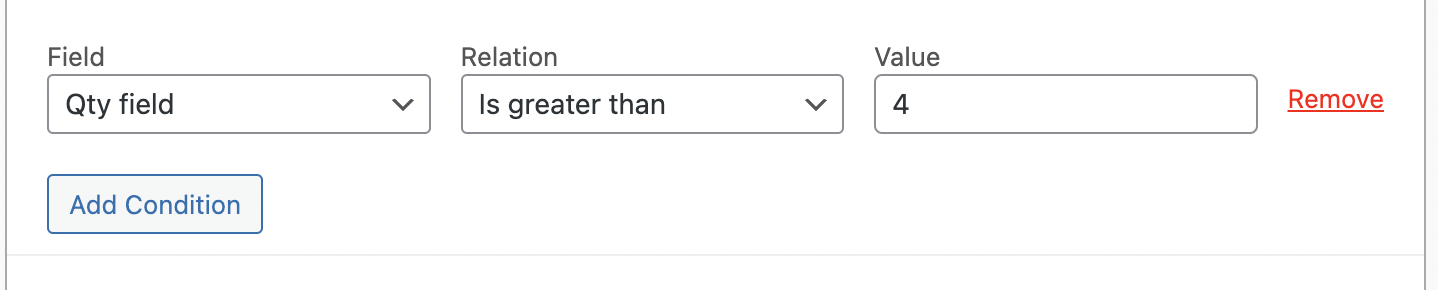
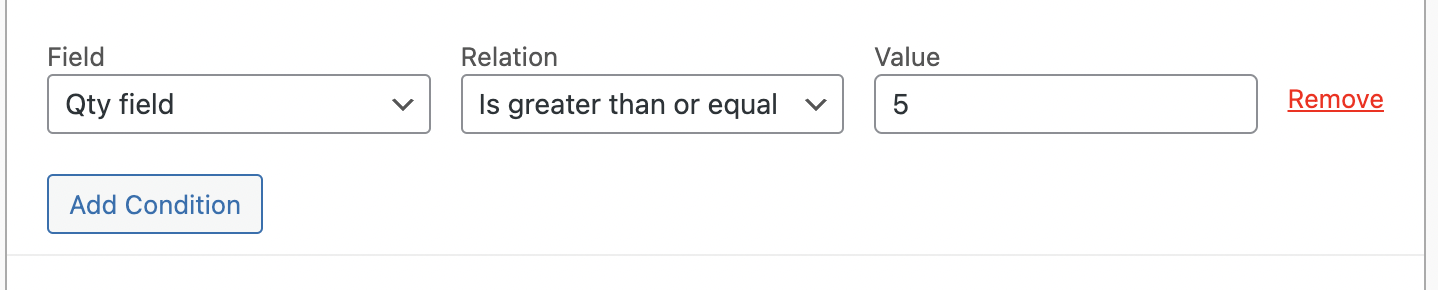
- Is greater than or equal and Is less than or equal – work the same as the previous options but also match when the price or quantity equals your value.
Conditional Logic works smoothly with all the other settings you have in Add-ons, such as descriptions, limit ranges, and required fields.
How does it work with required fields?
When you apply conditions to a required field, it works this way:
If the conditional logic is set to ‘Show this field if’ and the condition is met – the customer will be required to fill in the field.
If the conditional logic is set to ‘Show this field if’ and the condition is not met – the customer won’t see the field and won’t be forced to fill it in.
If the conditional logic is set to ‘Hide this field if’ and the condition is met – the customer won’t see the field and won’t need to fill it in to add the product to the cart.
If the conditional logic is set to ‘Hide this field if’ and the condition is not met – the customer will be required to fill in the field.
Use Cases
Use case – adding packages, postcards, and gift wrap with dependencies
Let’s say you use Product Add-ons to offer packages and postcards, and their availability depends on whether the user needs a package and on the package size.
You have a required field asking whether to add a package, which may be either yes or no:
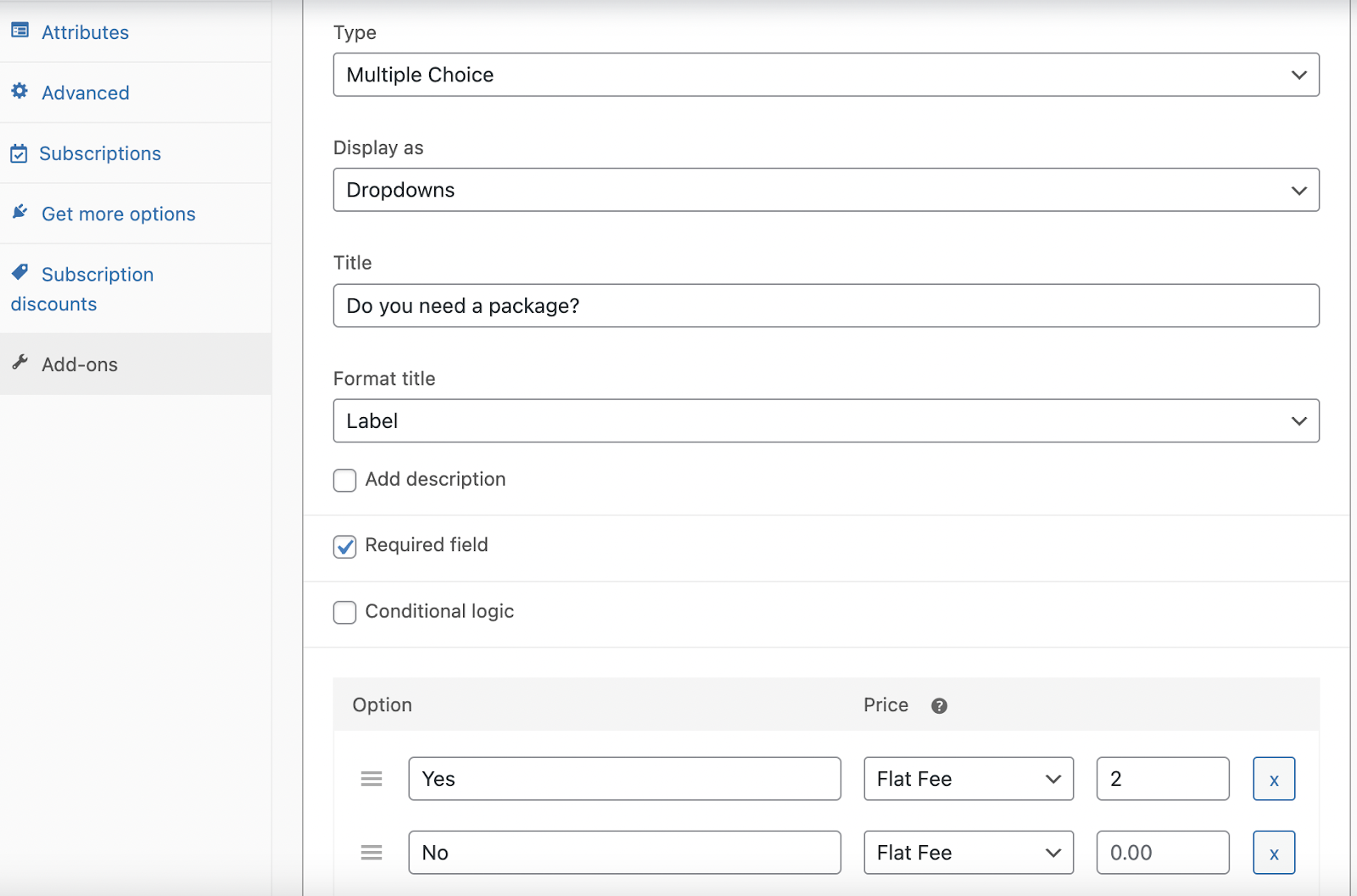
Then you have a field to choose the package size – small or large. You need this field to be displayed only if the user chose ‘Yes’ in the first field:
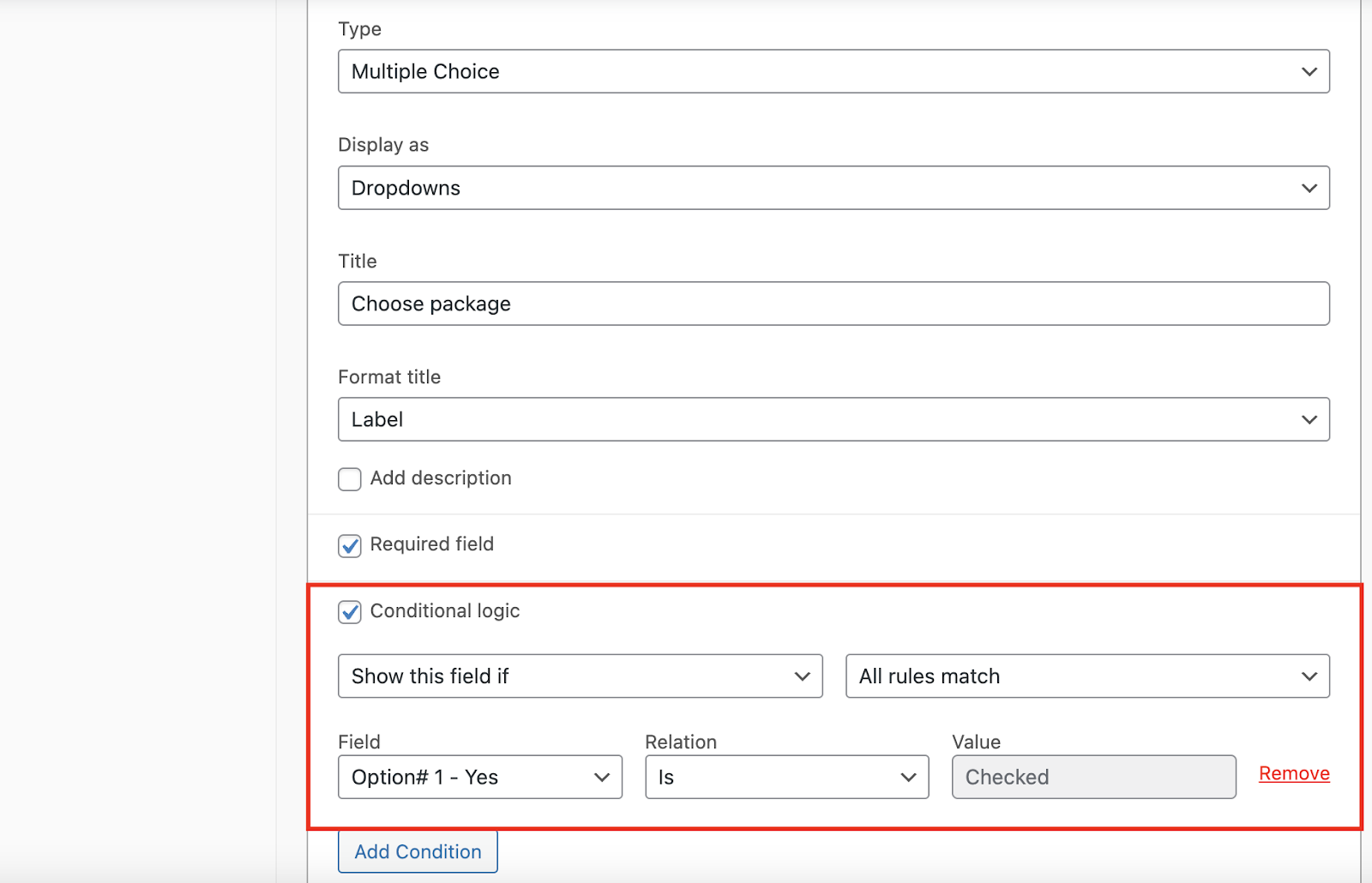
You can see the condition: if the user chooses ‘Yes’ in the field ‘Do you need a package?’, this field will be displayed — and it will be required as well.
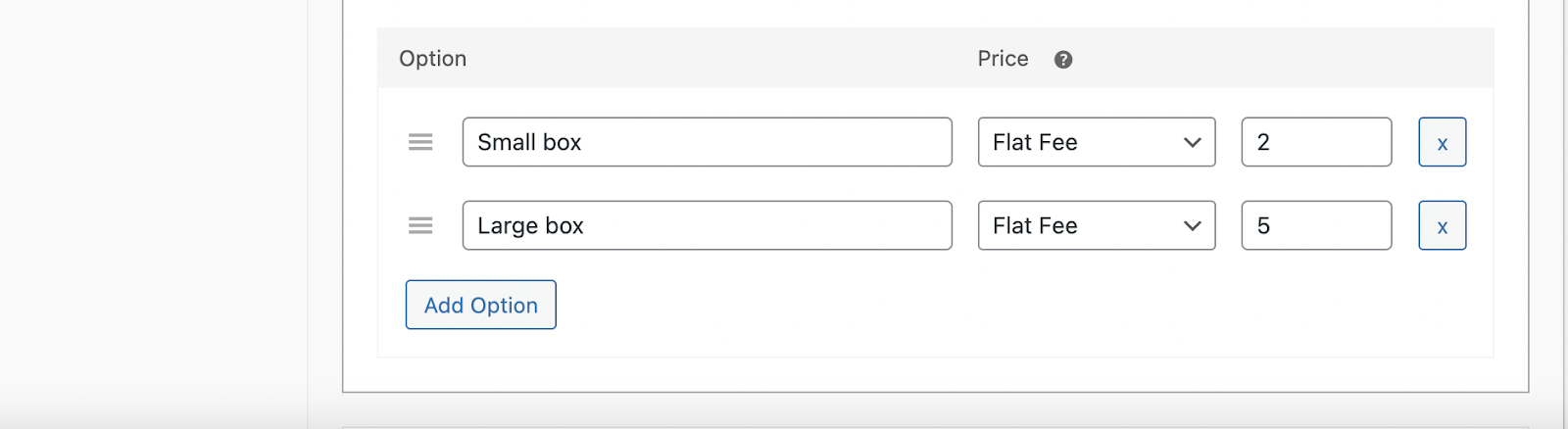
This field offers two types of packages – large and small:
Next, you want to add a postcard, but the postcard also depends on the type of package: you want to offer bigger, more expensive postcards for bigger packages. So you create two separate postcard fields.
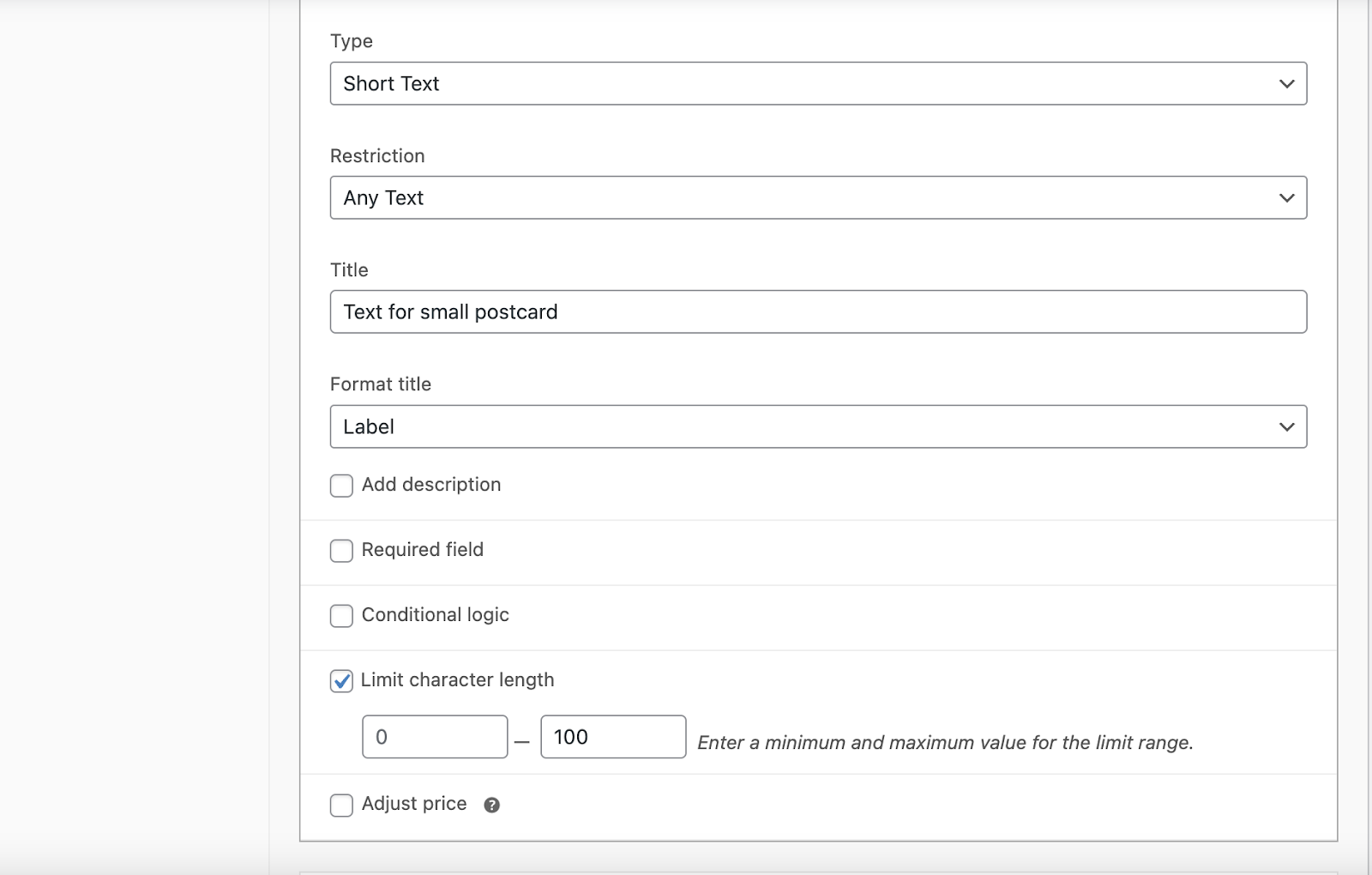
A Short Text field for the small postcard, limited to 100 characters:
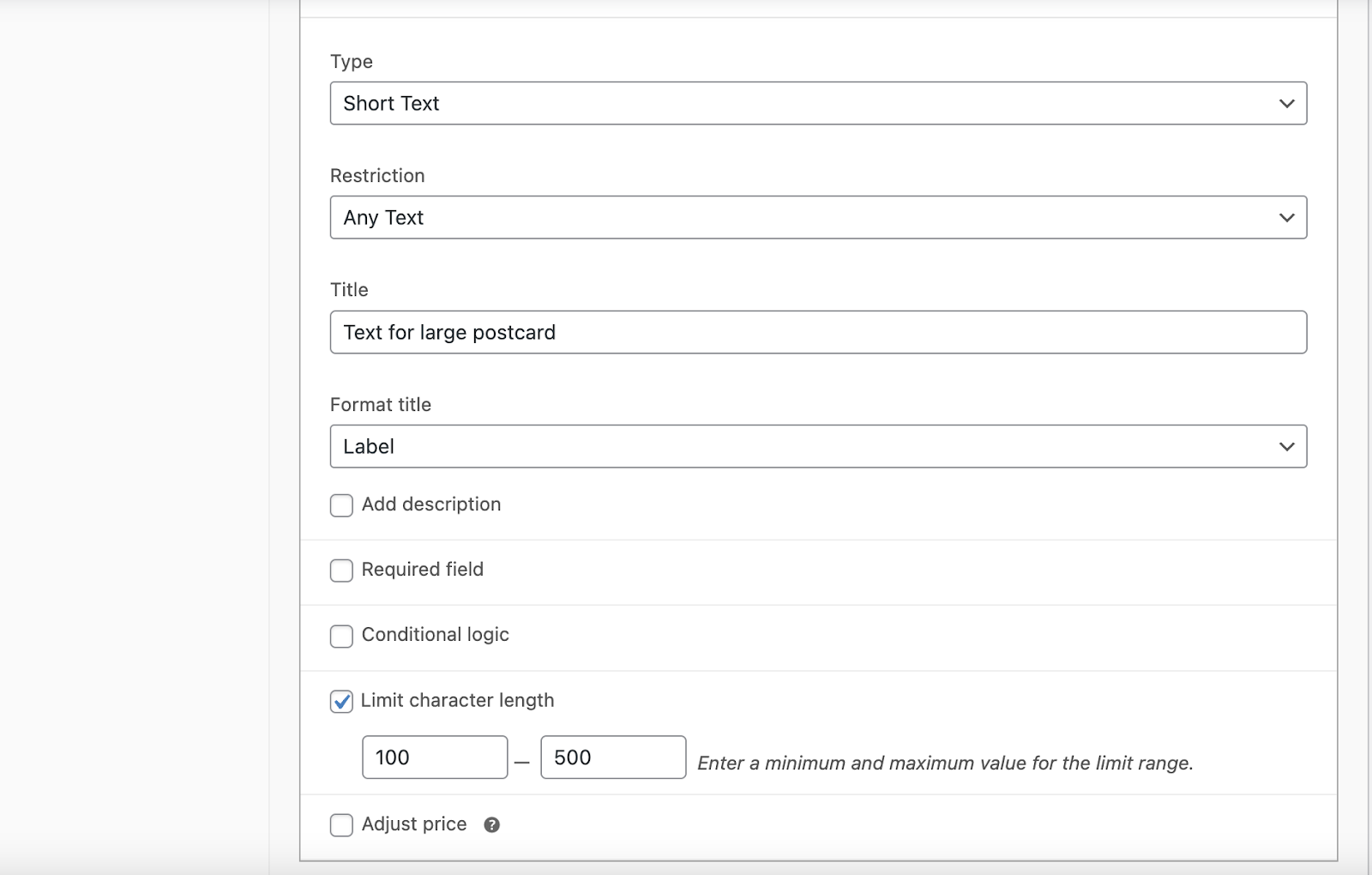
And a second field for large postcards, limited to 500 characters:
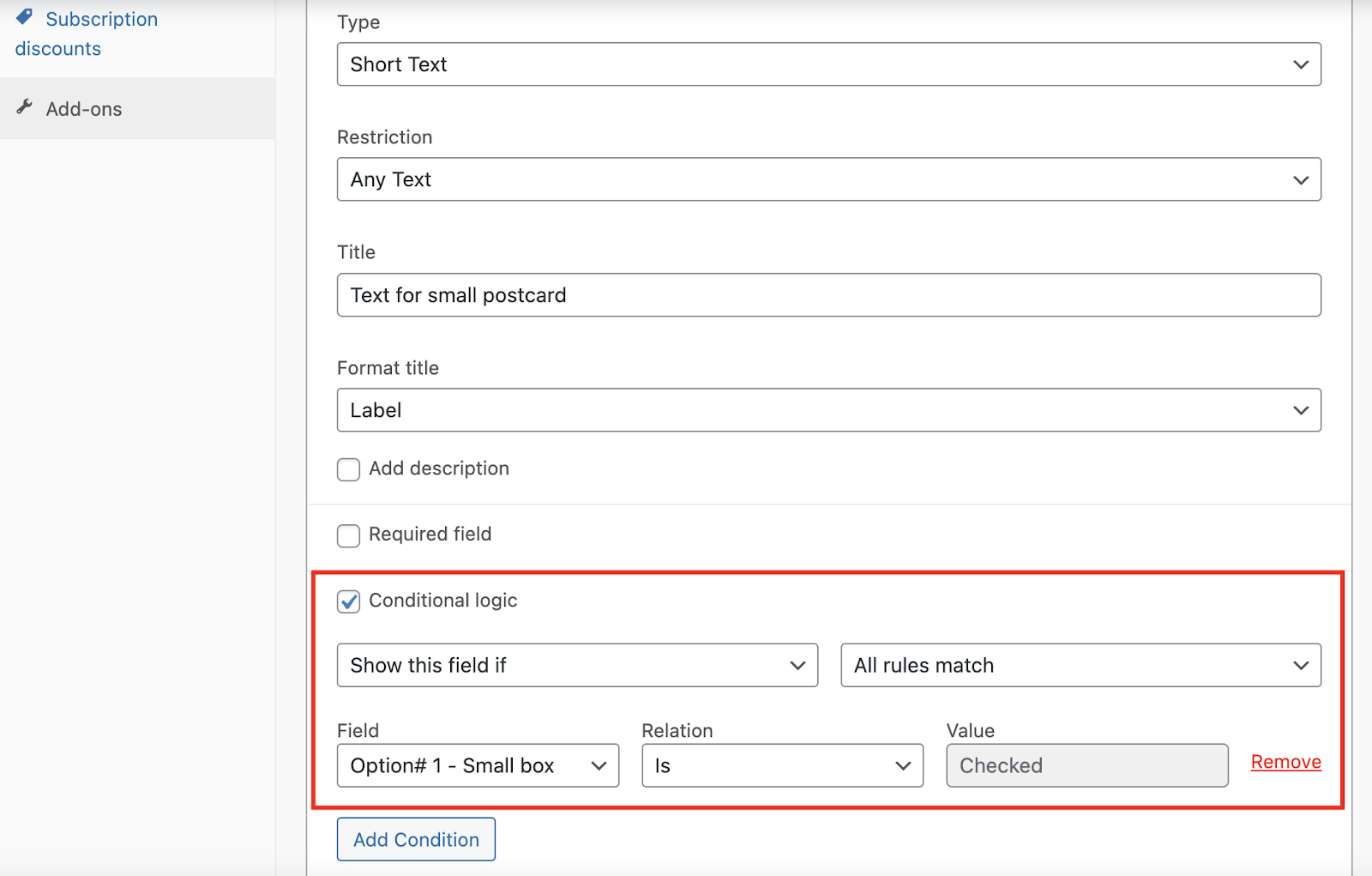
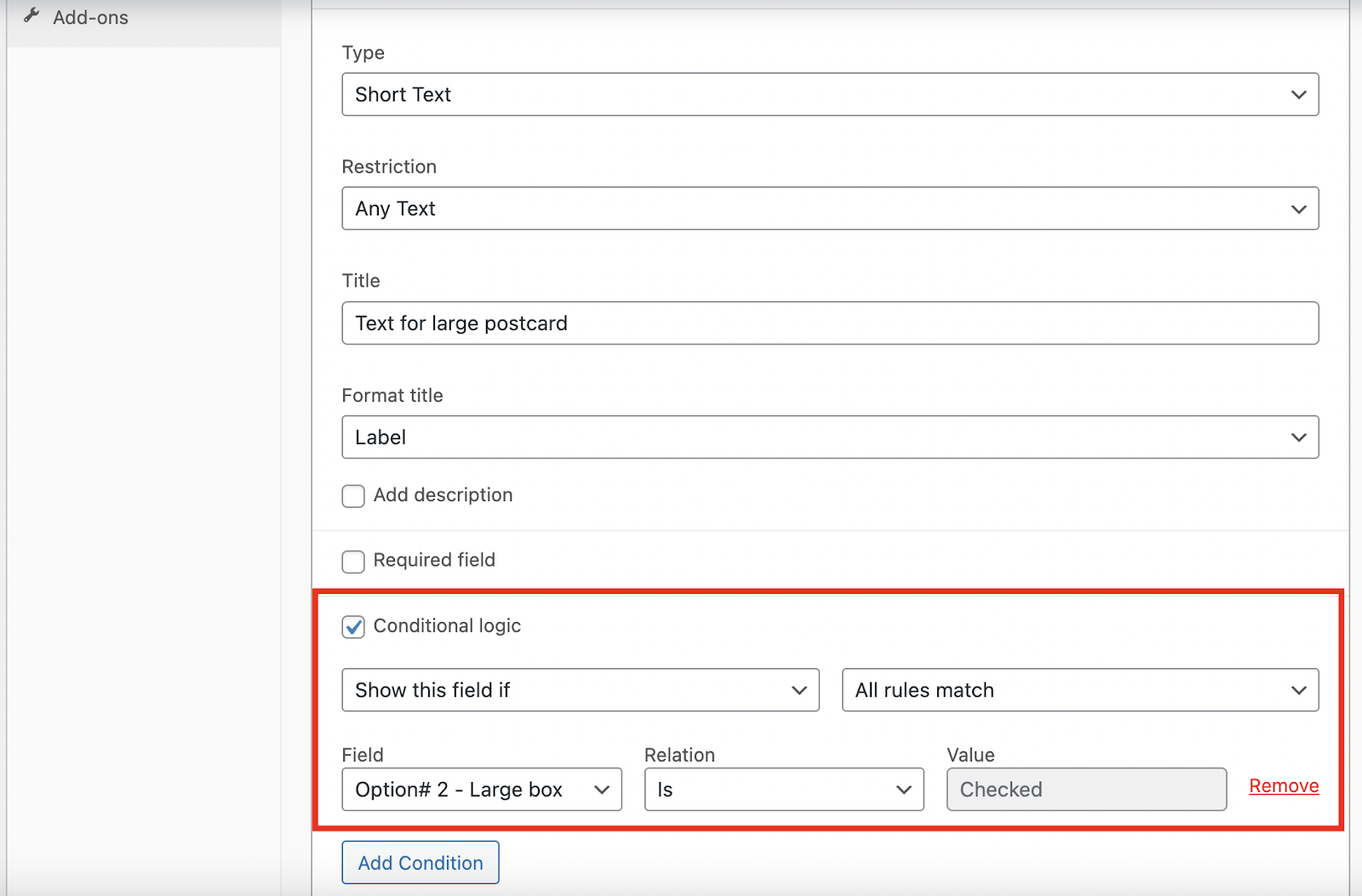
Then you set up conditional logic to show each field only for the appropriate package.
The ‘small postcard’ should be displayed only when the user chooses ‘Small box’ in the second add-on field:
Do the same for the large postcard – show its text field only when the large box is picked:
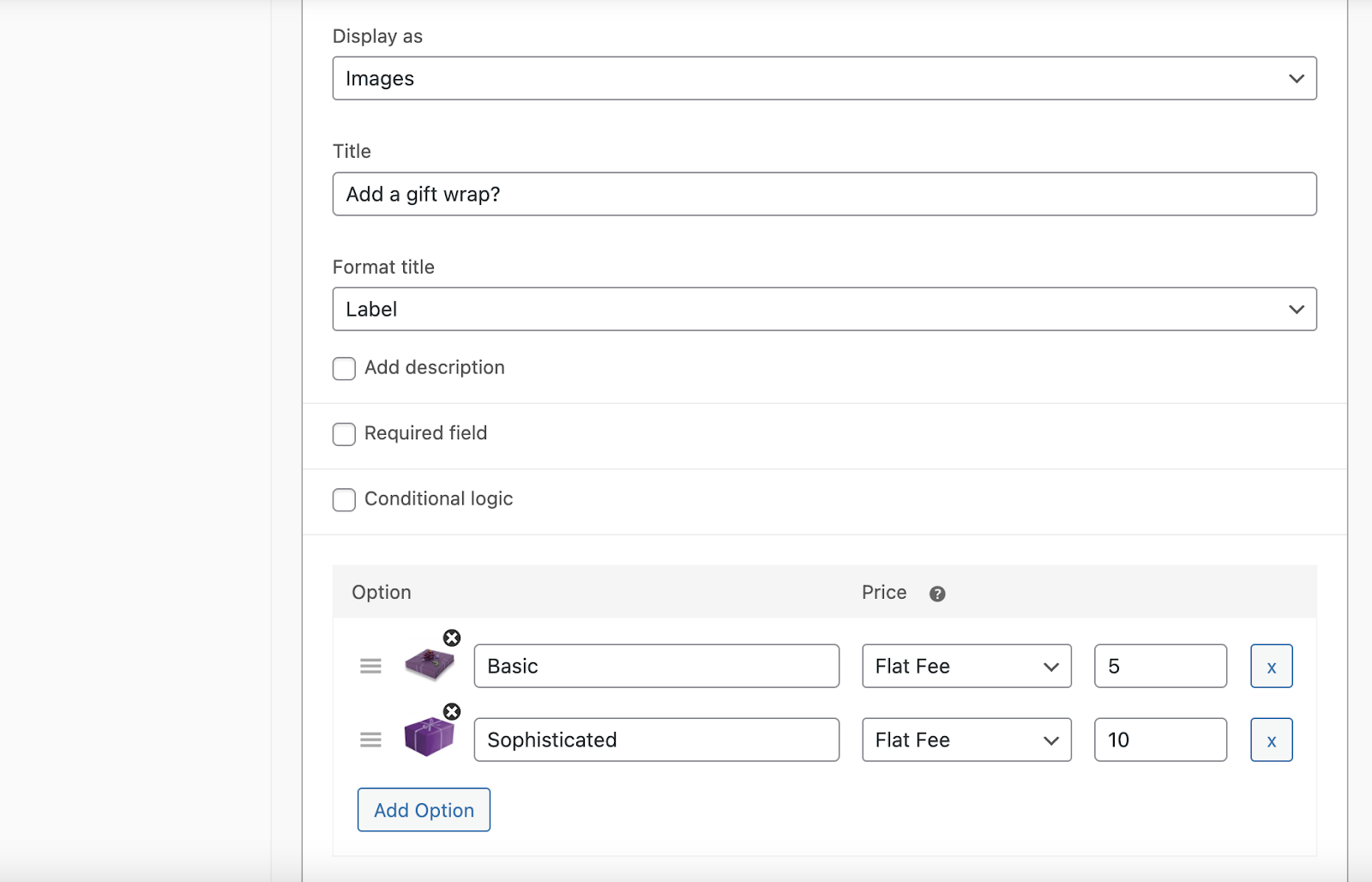
Then, if you want to offer gift wrap when the customer goes the whole way:
To make that field appear after the user picks a package size and writes text for the postcard, add a condition to display the field only if the user has filled in either of the postcards:
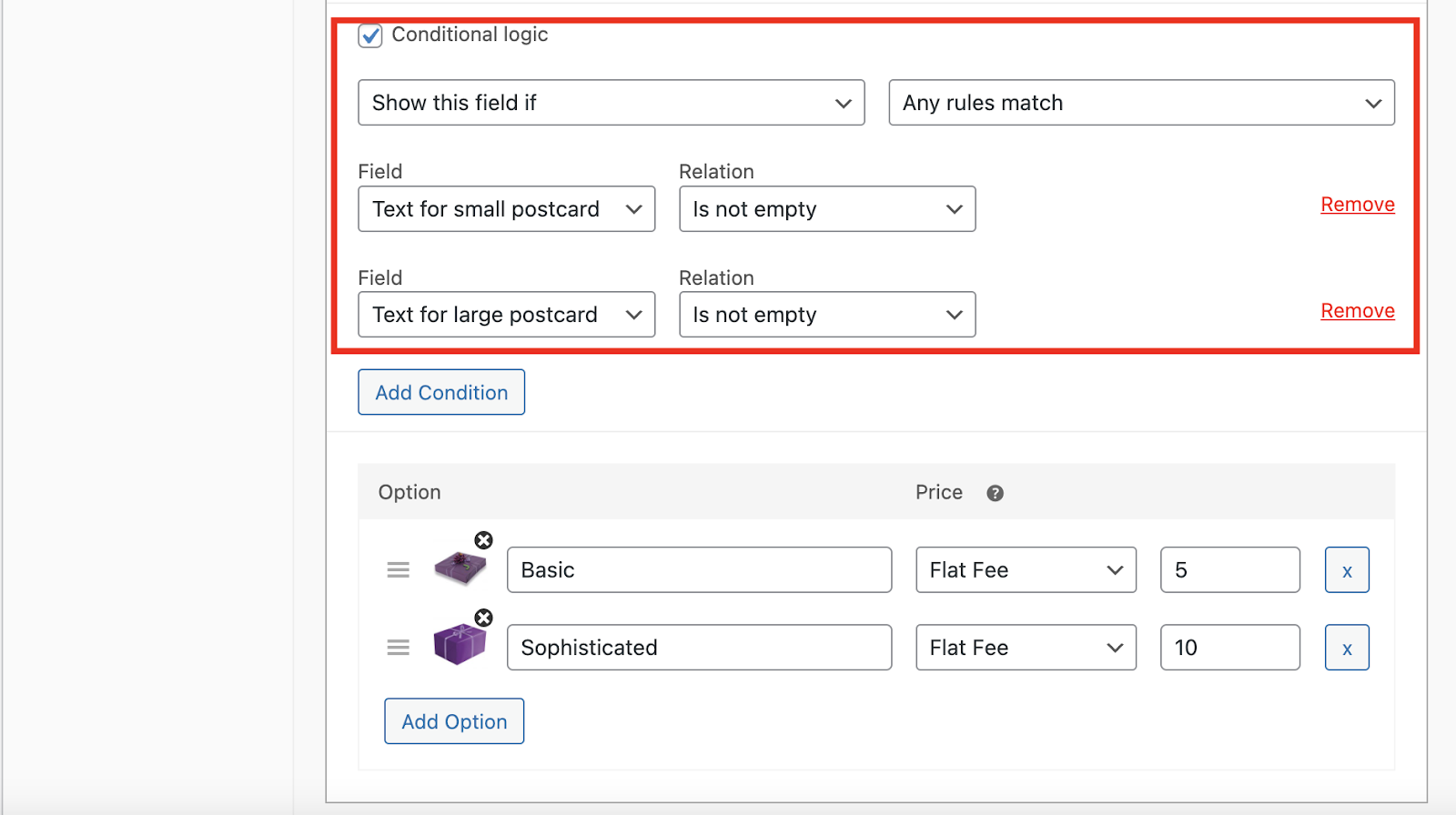
The conditions are satisfied if any of the postcard fields are filled in.
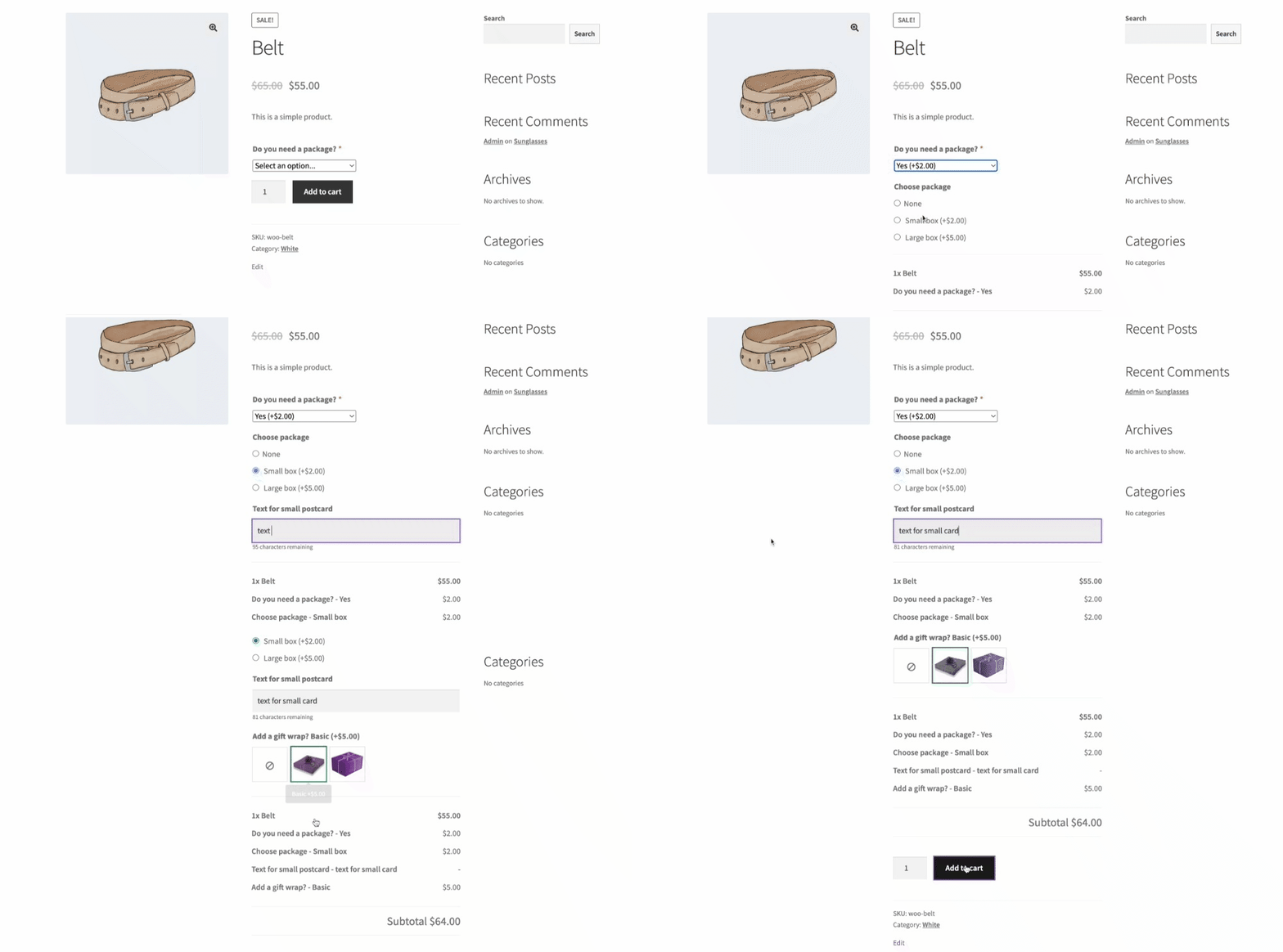
As a result, this is how the add-on fields appear on the product page when the conditions are met:
FAQs
Is there any type of field conditional logic can’t be applied to?
- Conditional logic can be applied to any default Product Add-ons field, and all fields and their options can be used as conditions.
Are there any limits to the number of conditions set on one field?
- No, as long as they don’t contradict each other. For example, you cannot use the ‘All rules match’ type and then set two options of a multiple choice field, because the output of that field is always one chosen option.
When trying to add conditional logic, I see an error saying “Please update (re-save) the post to set up conditional logic”.
- That means you haven’t updated the add-on or product yet. Conditions need a special slug assigned to each field and its options, and that happens only when you update the add-on or product after installing the plugin.
Which add-ons plugins can be used with this conditional logic?
- Conditional Logic for WooCommerce Product Add-ons is designed to work only with the official Product Add-ons plugin. You won’t be able to set up conditional logic without it.