

Those who run subscription-model businesses are well aware of the challenge of changing prices.
By default in WooCommerce, if you update your subscription product’s price, existing subscribers stay subscribed at the old price. If you increase or decrease the price of a subscription product, only future purchases are billed at the new cost.
There are a few ways to adjust subscription prices on the go.
Manually Recalculate the Cost of Each Ongoing Subscription
You can find each active subscription under WooCommerce > Subscriptions. Open one of them and click edit item:
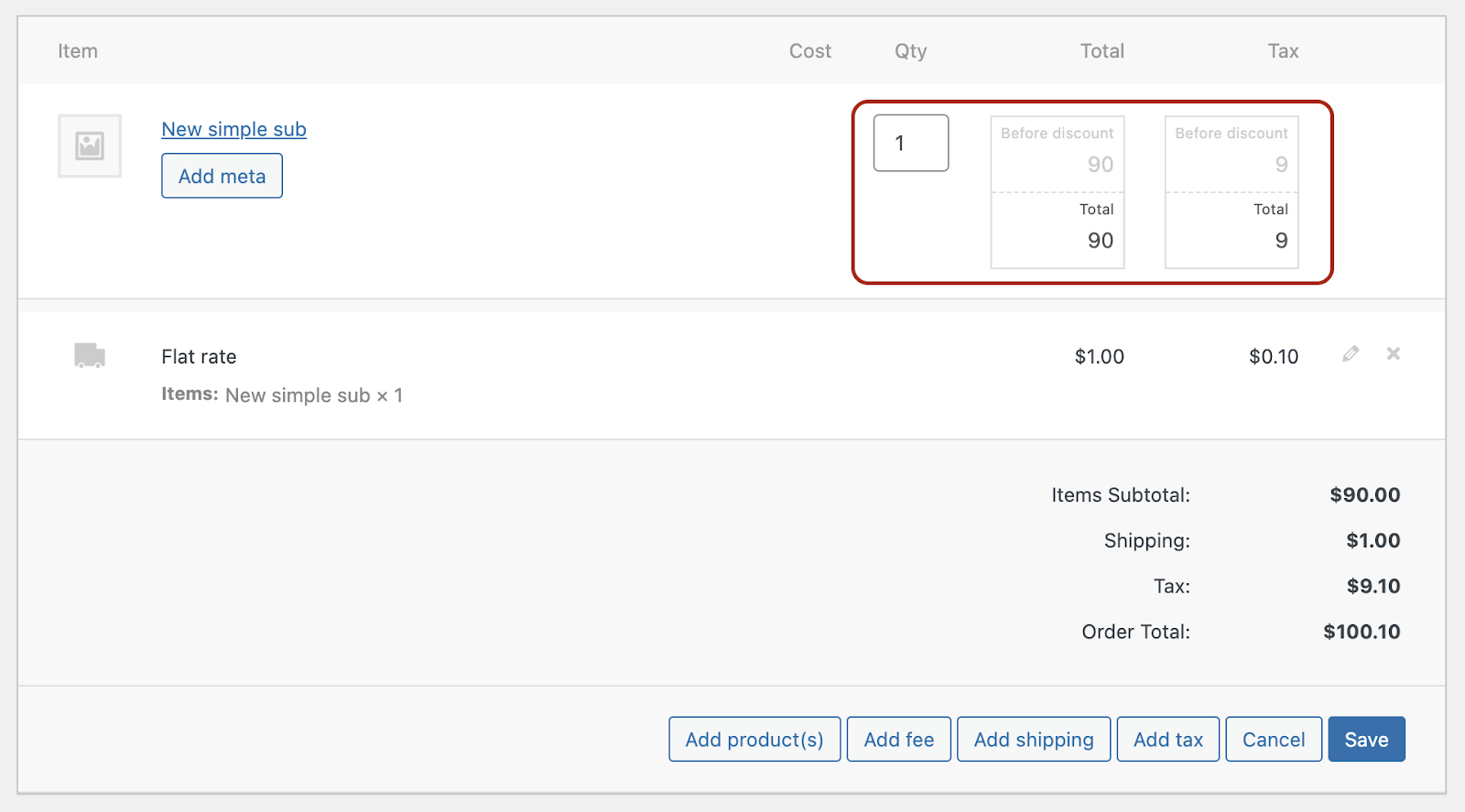
Here you can:
- change the cost of the product in the subscription;
- add tax, fees, or shipping costs;
- or add more products to the subscription.
Alternatively, if you don’t want to mess with prices and change product costs manually, you can change the price of the subscription product itself, then remove it from the active subscription and add it once more:
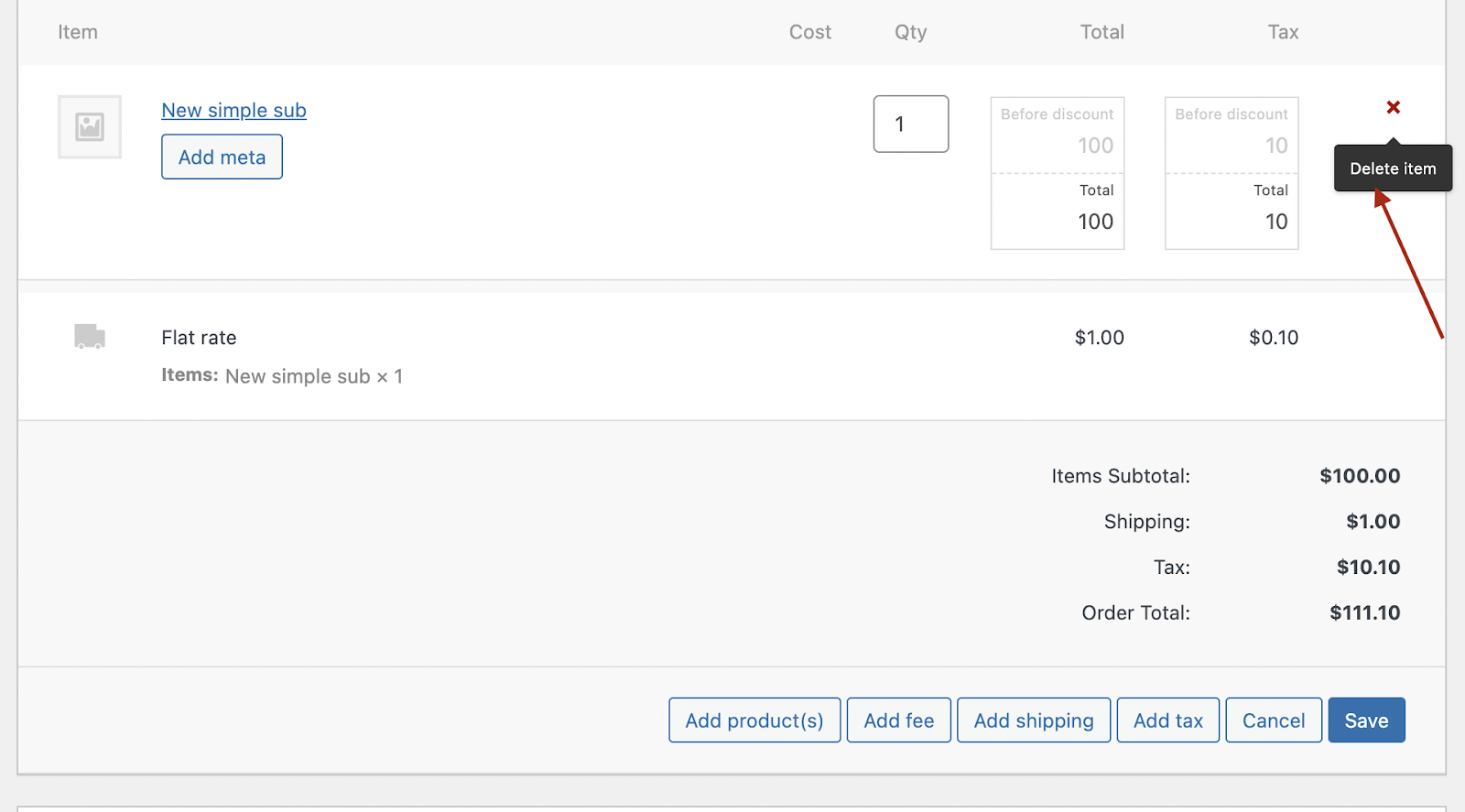
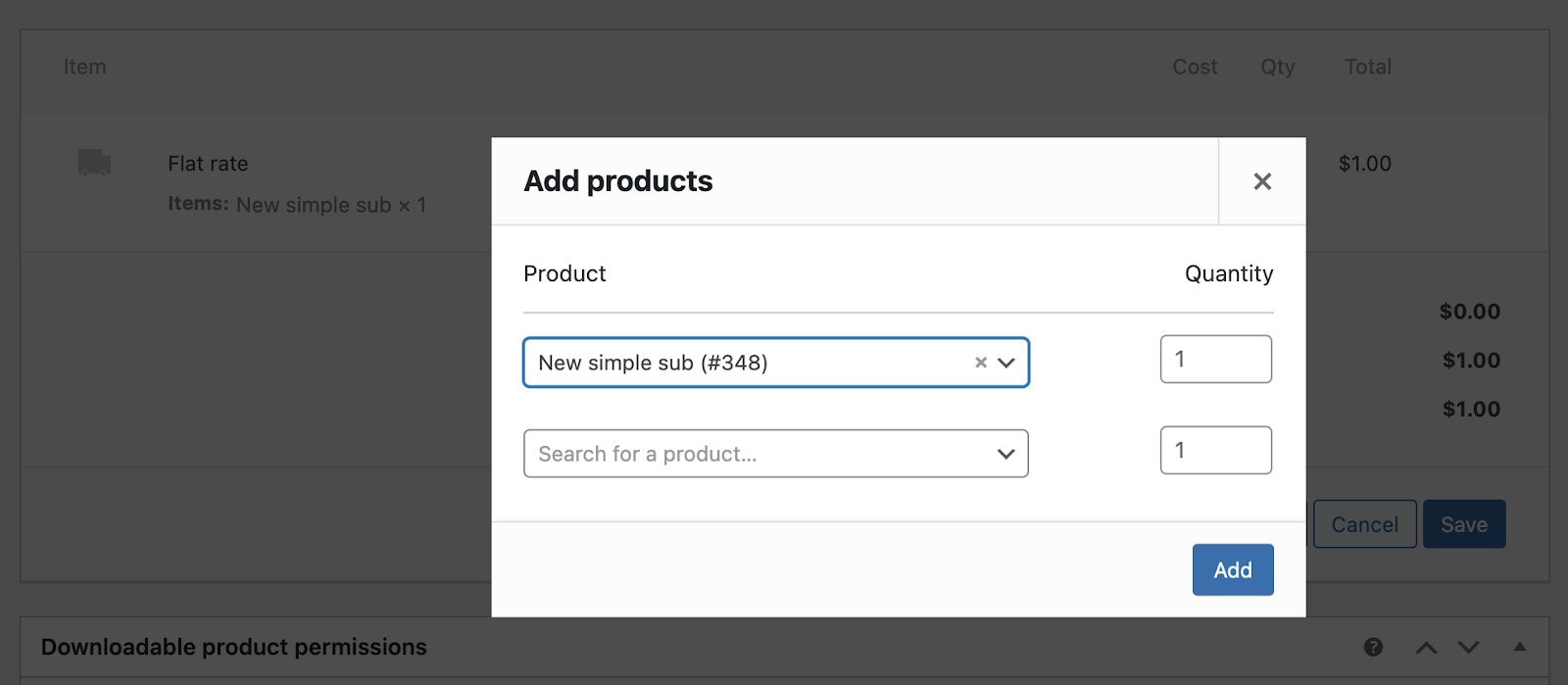
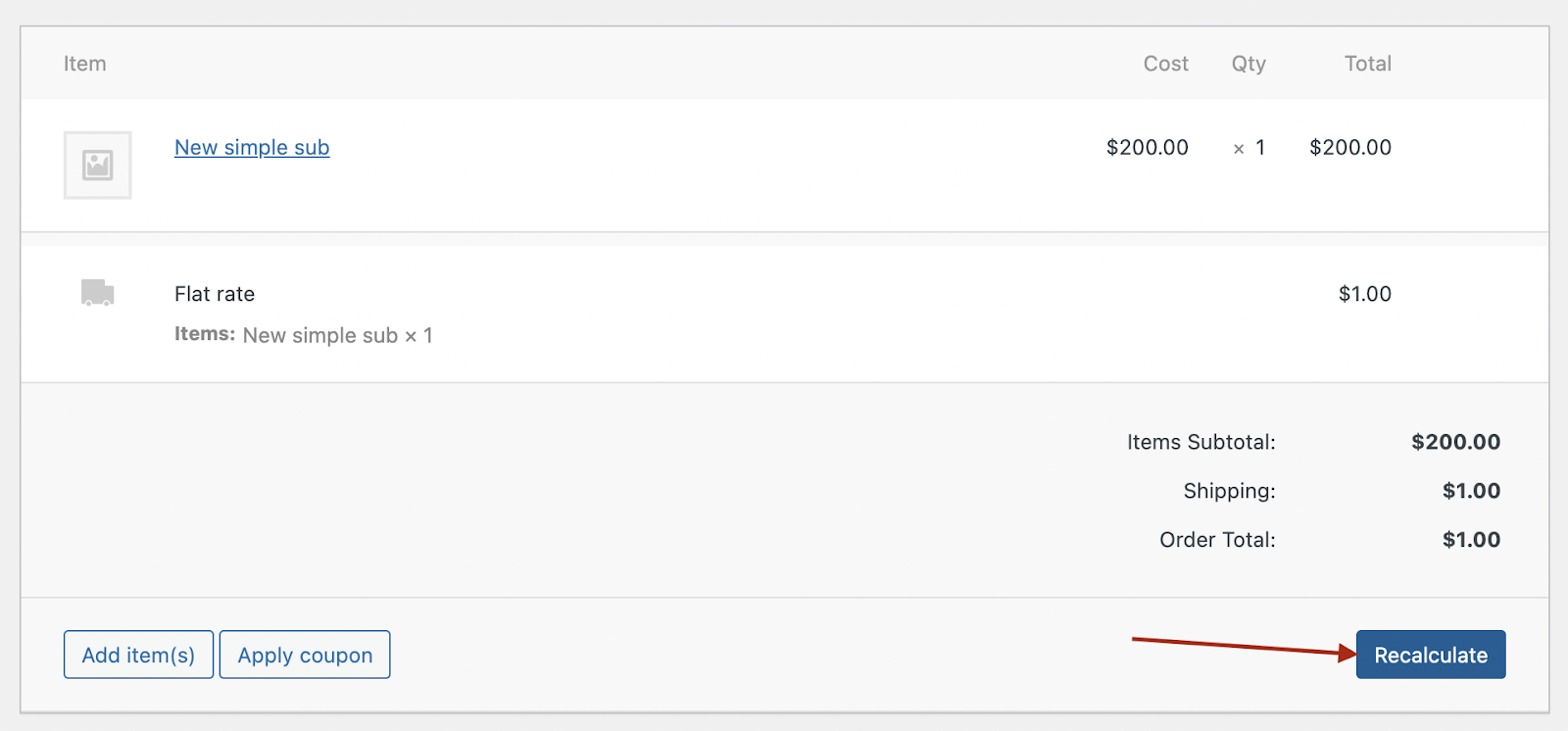
Then recalculate the totals — and that’s all: the new product price will be applied on the next renewal date.
For cases where you want to let clients pick their next renewal cost on their own, you can create a new variation of the subscription product and let current customers upgrade or downgrade their subscription.
Note that when you manipulate the subscription cost this way, your subscribers won’t be notified in any way. They’ll simply be charged the new amount when the renewal comes and will see the adjusted price in their subscription details.
Changing the Subscription Cost Automatically When Renewal Comes
With the Discounts for WooCommerce Subscriptions plugin, you can not only create promotional discounts but also change the cost of recurring payments in any direction — both increasing and reducing prices are possible.
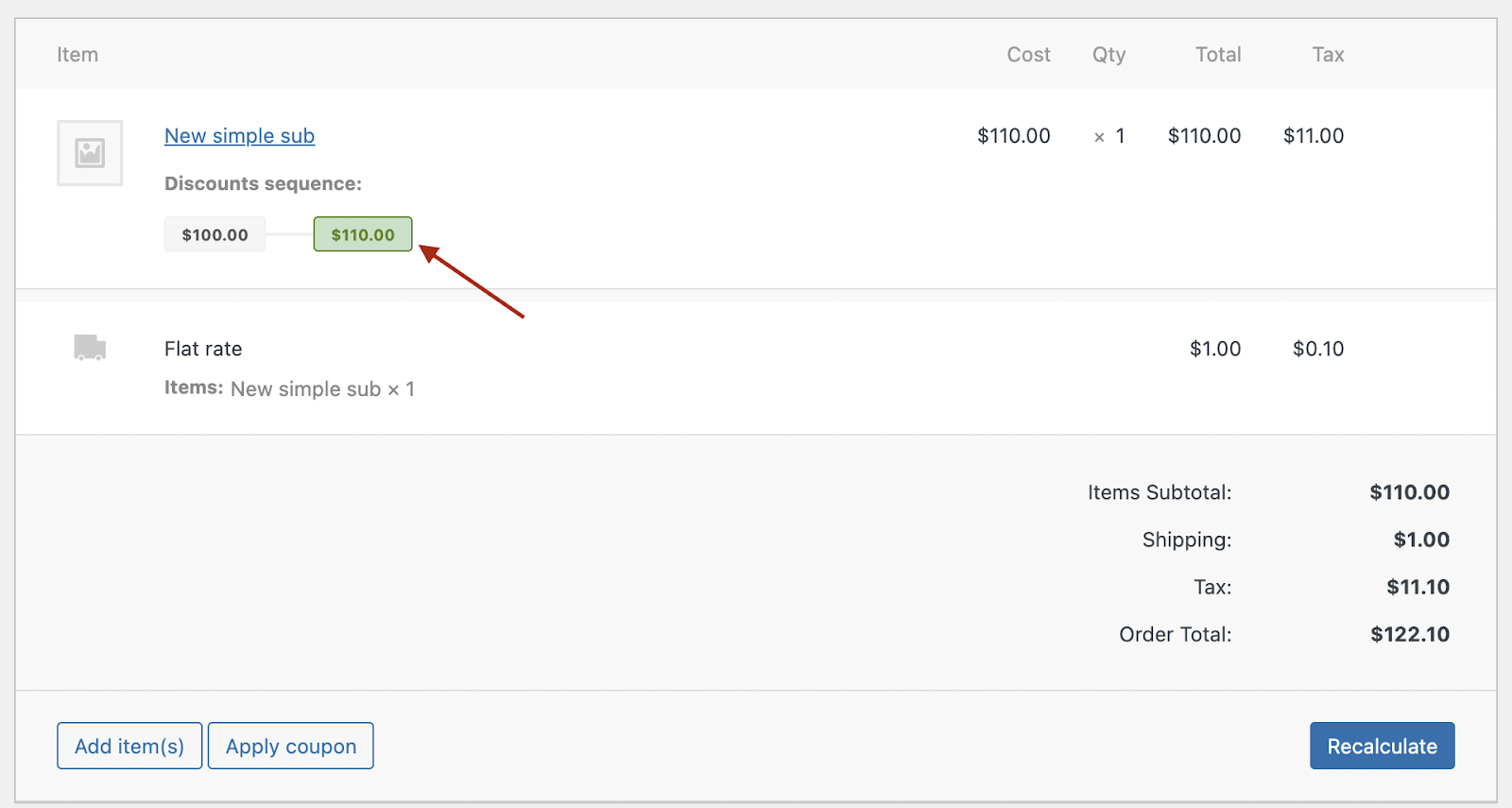
Imagine you have a subscription that costs $100 with a bunch of active subscribers. You need those active subscribers to pay $10 more starting from their second renewal (if they’re active, they already have at least one successful initial payment). You can create a discount sequence for that product and assign the $110 price starting from the second recurring payment:
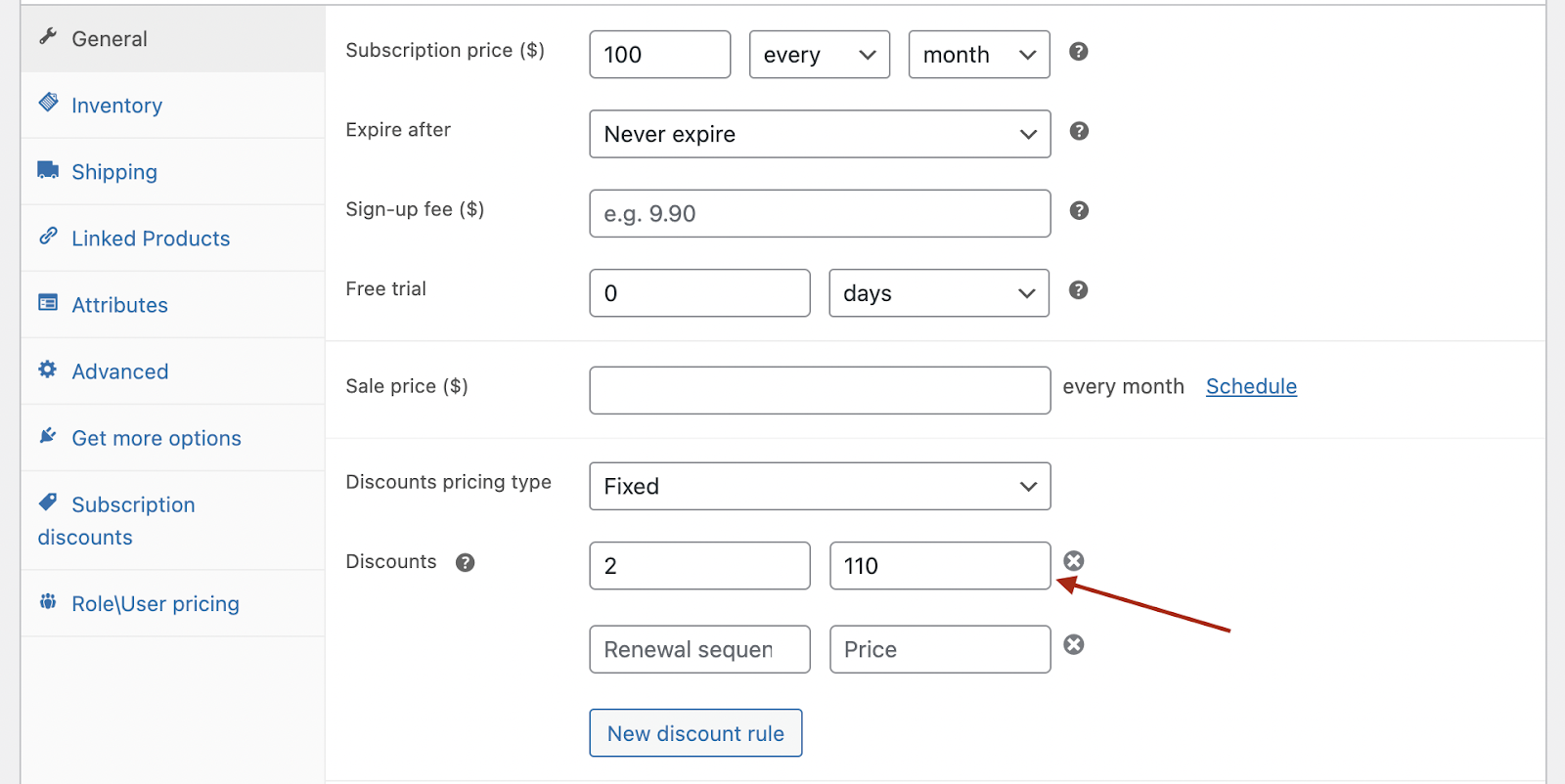
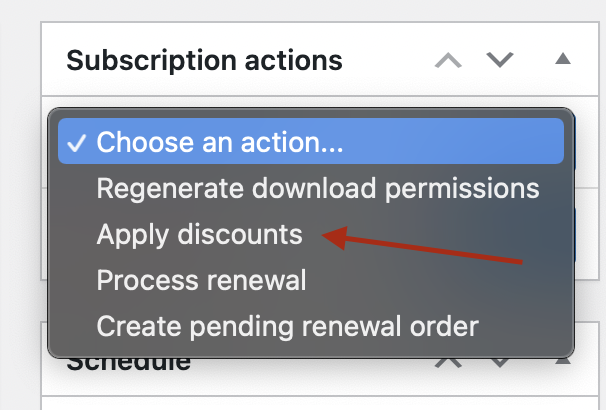
Then apply the renewal cost changes to your active subscriptions: go to WooCommerce > Subscriptions > choose a subscription and find the apply discount action in the Subscription actions area:
And watch the subscription cost change starting from the next renewal:
This is better than manual price adjustments, simply because your clients will see the upcoming price adjustment in their account and renewal emails:
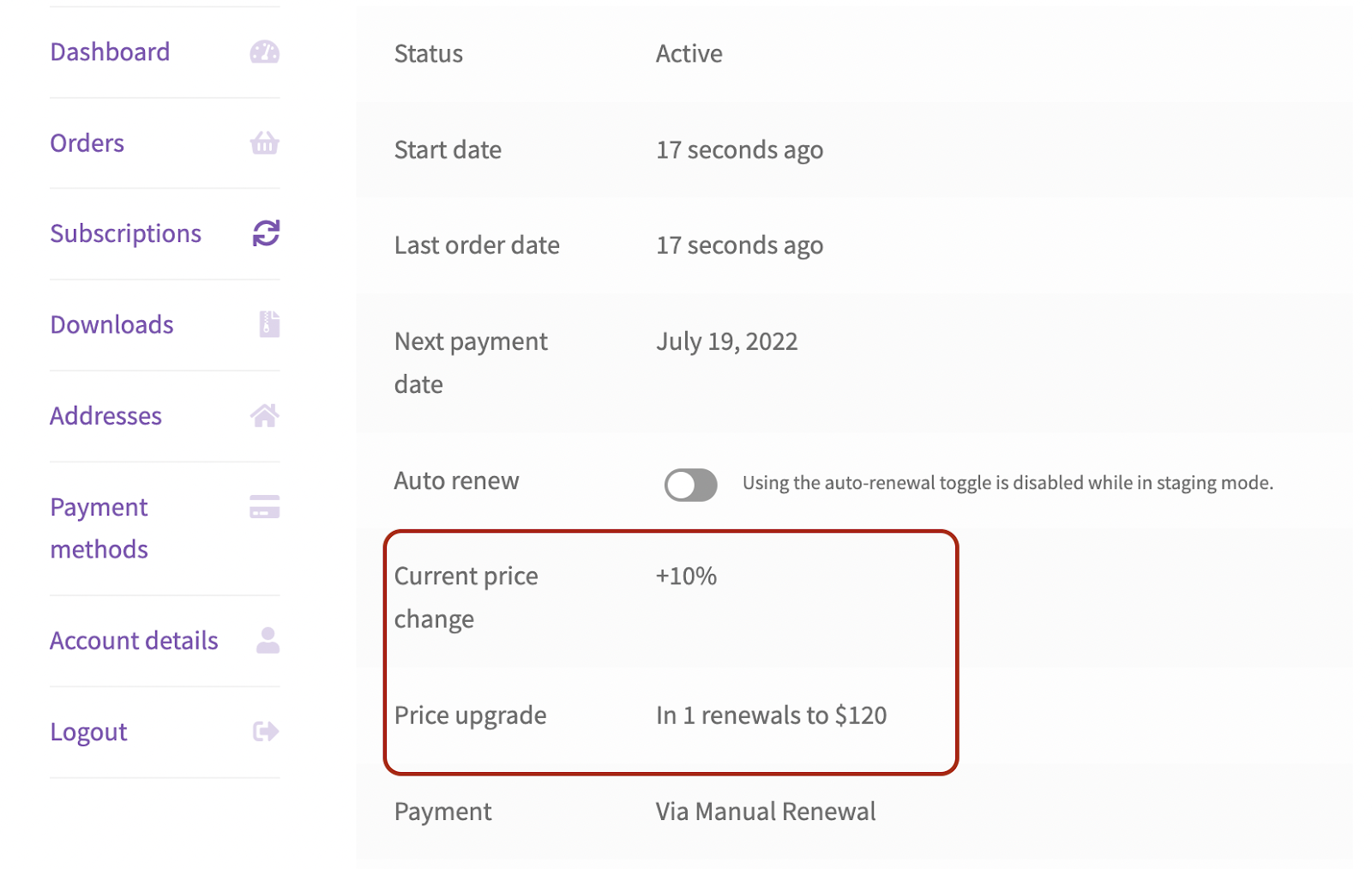
Subscribers can see their current subscription cost, how it has changed over time, and when the next price adjustment will occur. Your subscribers will be thankful for your transparent, genuine attitude toward price changes.
The plugin also works if you don’t need to adjust prices right away — changes in subscription cost can be planned from the moment the user first purchases the product.
For instance, say you need to increase the subscription cost six months after the user subscribes, and then repeat that every six months. With the help of Discounts for WooCommerce Subscriptions, you can design a subscription product whose price adjusts automatically when the time comes.
Your setup can look something like this:
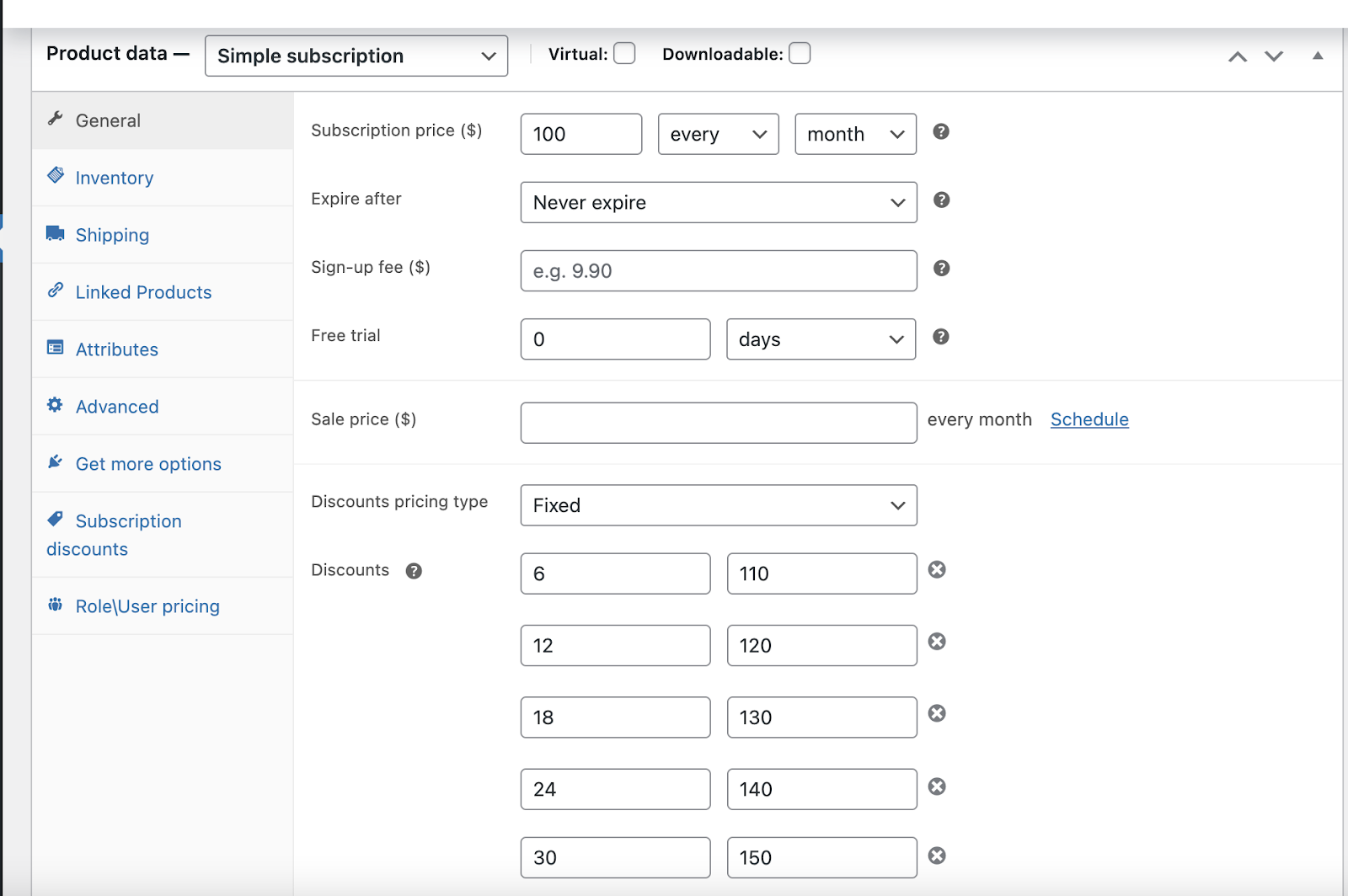
In this example, the subscription cost adjusts automatically every six months by $10, and all your customers are properly informed.
Of course, you can set this up in either direction — making the subscription product rise by $10 or drop by $10, over whatever period and amount you need.
Bulk Update the Subscription Cost
One more thing you should know is how to bulk update prices. Whenever you change your pricing policy or want to improve your margins, manually updating dozens of subscriptions can be time-consuming.
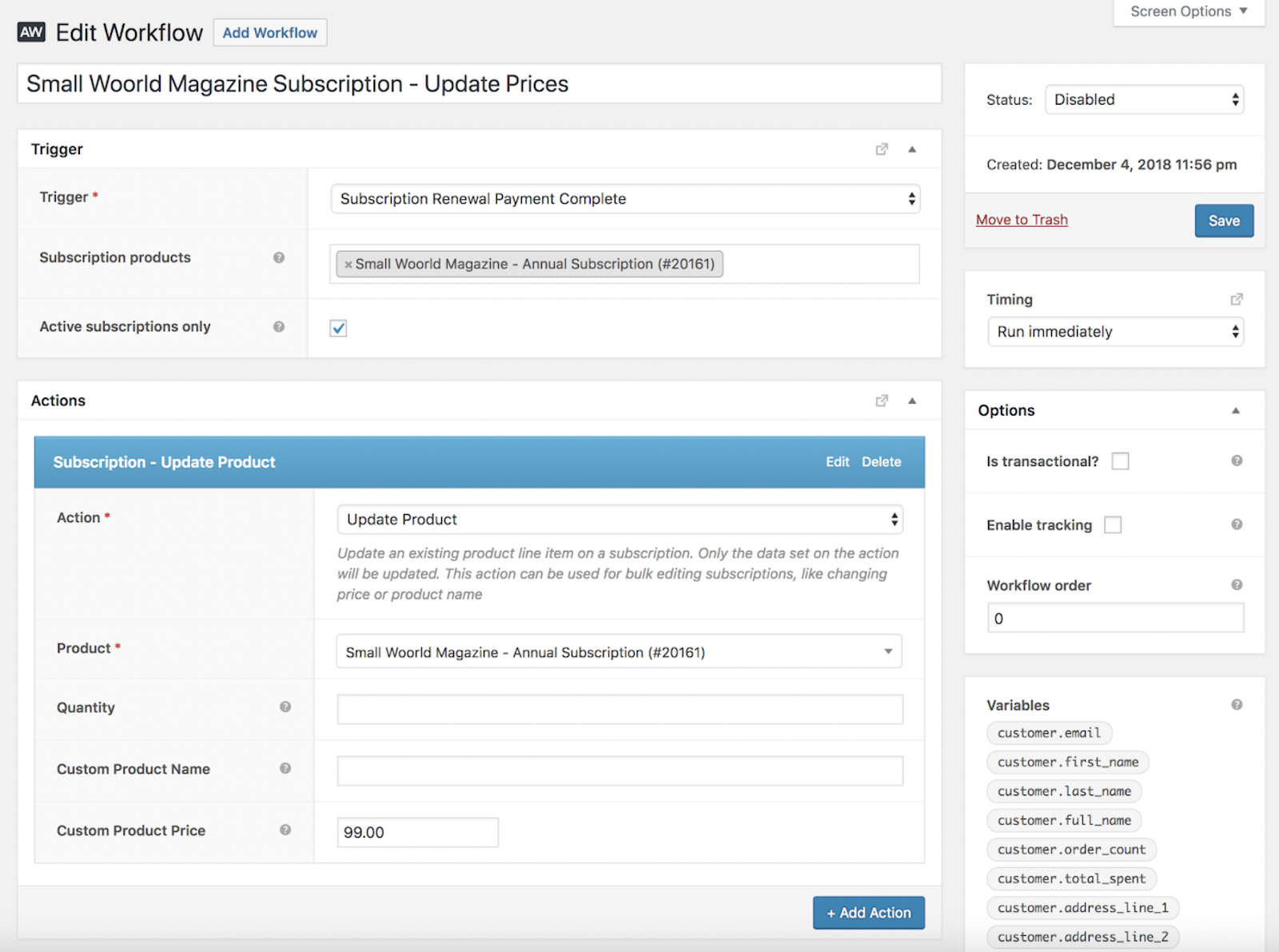
The two most convenient ways to mass-update prices are creating an AutomateWoo workflow or using a dedicated plugin. You can find complete instructions for building a price-update workflow with AutomateWoo here. In short:
1. Create a workflow to update subscription product prices:
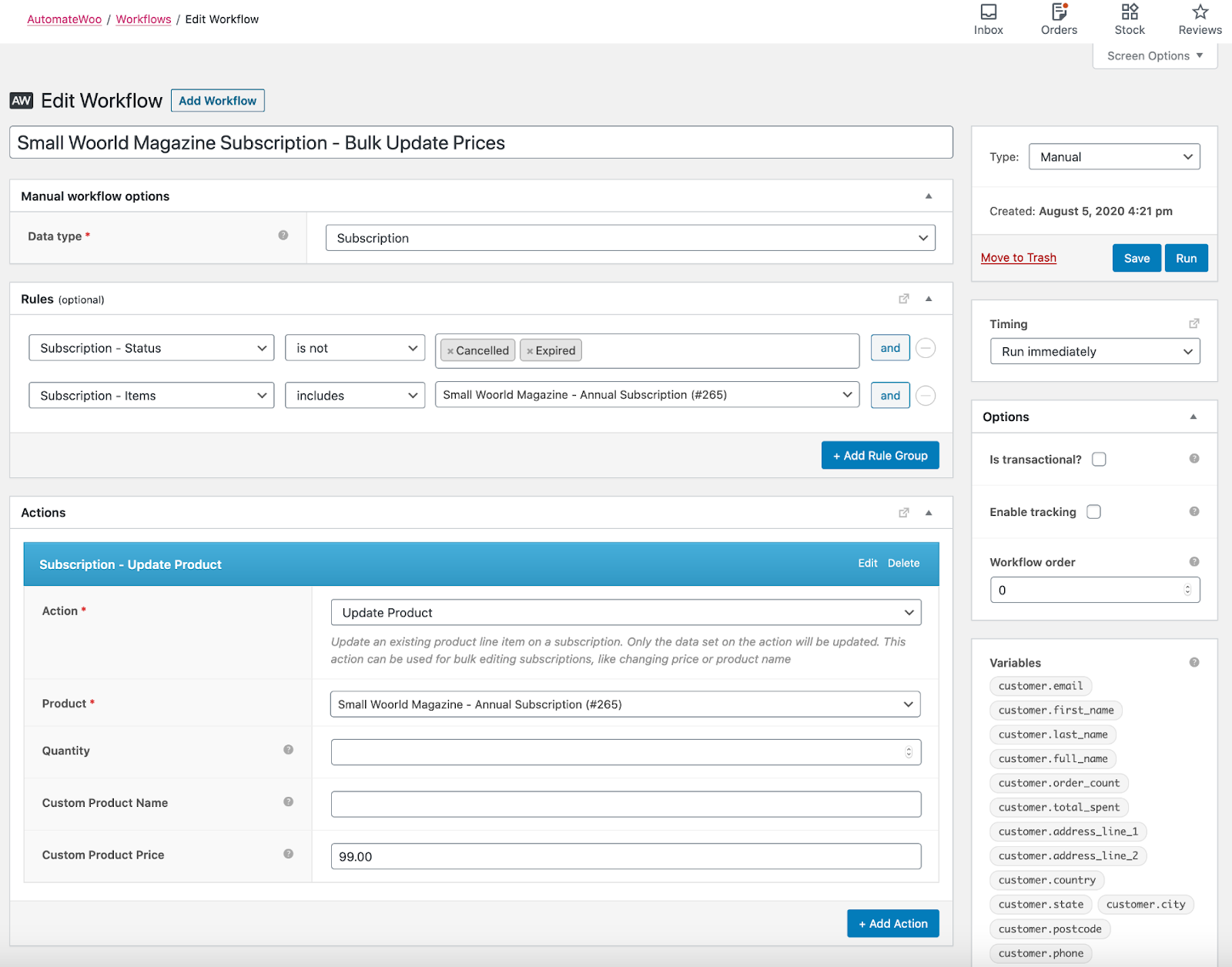
2. Choose a trigger to update the prices, or bulk update manually. If you use a trigger, the workflow waits until the event occurs (right before the next payment, when the subscription status changes, etc.) to update the prices. If you choose to bulk update prices manually, add one more workflow to apply the changed prices right away:
3. Let your subscribers know that prices have changed. With AutomateWoo, you can send custom emails to your active subscribers immediately, or ahead of the price update, to protect them from a poor experience.
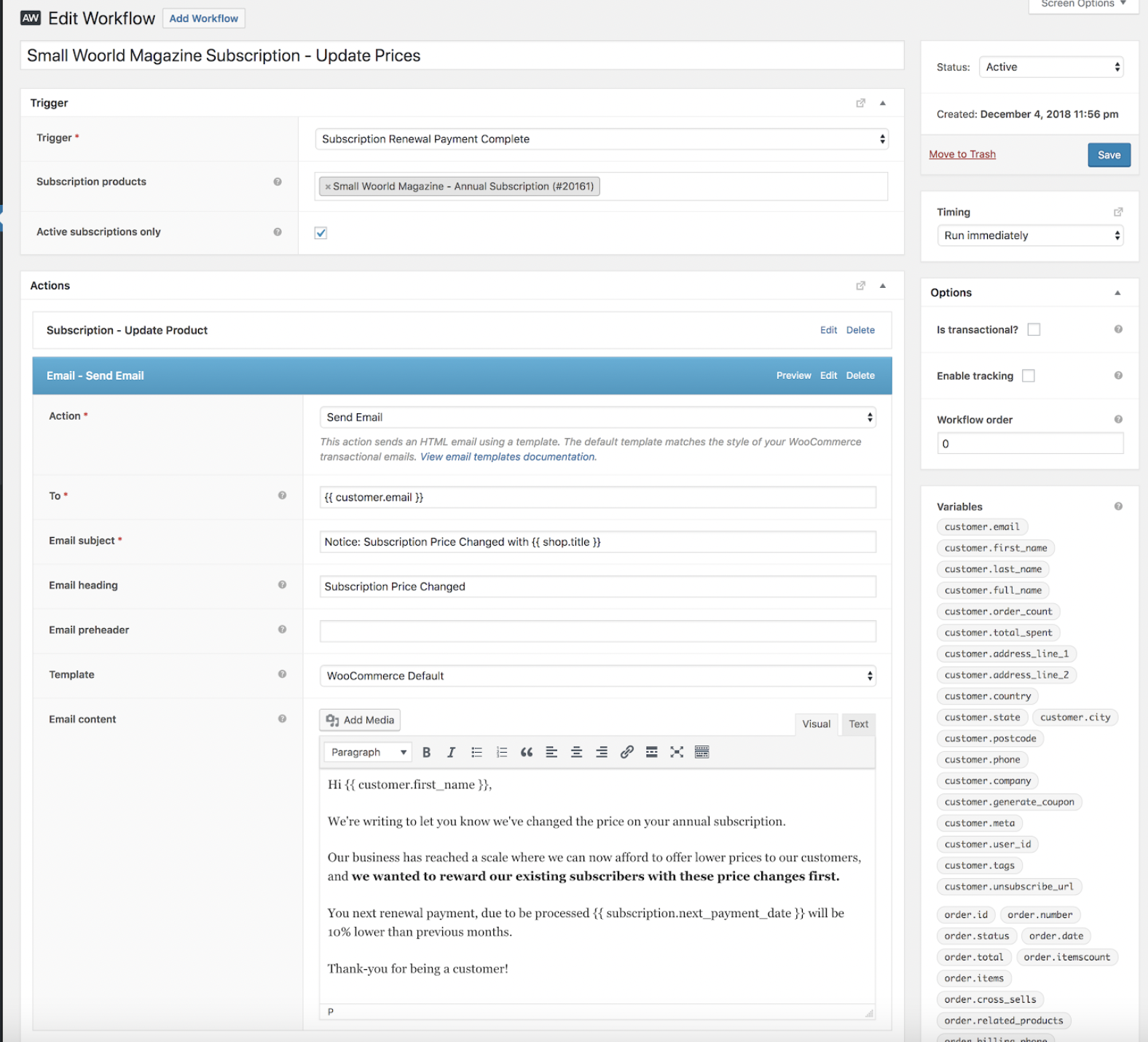
One of the biggest benefits here is that you can pick the trigger you want, postpone the price changes to the moment that suits you best, and inform your customers appropriately. The only downside is AutomateWoo’s price, which may be overwhelming if you only need it for price updates.
For budget’s sake, you can consider one more approach — using a dedicated bulk-update plugin. You’ll find plenty of plugins of this kind on the WooCommerce marketplace and beyond. We won’t tell you exactly which one to choose — these plugins are all pretty similar. The one thing you should pay attention to is the ability to notify subscribers.